Desertcart purchases this item on your behalf and handles shipping, customs, and support to South Africa.
🚀 Stay Connected, Stay Ahead — The Ultimate 4G Router for the On-the-Go Pro
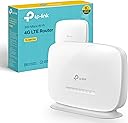
The TP-Link TL-MR105 is a compact, portable 4G LTE router designed for professionals and remote workers who demand reliable, high-speed internet on the move. Supporting up to 32 devices simultaneously, it delivers download speeds up to 150 Mbps and upload speeds up to 50 Mbps. Featuring a nano SIM slot and easy setup via the TP-Link Tether app, it also offers WAN backup connectivity and robust WPA2-PSK encryption for secure networking. Ideal for remote locations, backup internet, or anywhere traditional broadband falls short.


| ASIN | B0CTCZLFX7 |
| Antenna Location | internet connectivity on-the-go, gaming, streaming, providing backup internet connection |
| Antenna Type | Fixed |
| Best Sellers Rank | 392 in Computers & Accessories ( See Top 100 in Computers & Accessories ) 1 in Routers |
| Box Contents | 300 Mbps Wireless N 4G LTE TL-MR105|1. |
| Brand | TP-Link |
| Brand Name | TP-Link |
| Colour | white |
| Compatible Devices | Laptop, Personal Computer, Smart Television, Tablet |
| Compatible devices | Laptop, Personal Computer, Smart Television, Tablet |
| Connectivity Protocol | 4G LTE, Wi-Fi |
| Connectivity Technology | LTE |
| Control Method | Touch |
| Controller Type | App Control |
| Country of Origin | China |
| Coverage | Indoor, extensible with external antennas |
| Customer Reviews | 4.4 out of 5 stars 78,592 Reviews |
| Data Transfer Rate | 300 Megabits Per Second |
| Frequency | 2.4 GHz |
| Frequency Band Class | Single-Band |
| Frequency band class | Single-Band |
| Has Internet Connectivity | Yes |
| Is Modem Compatible | Yes |
| Item Highlight | 2 LAN/WAN Ports for Ethernet Cable, Connect Up to 32 Devices, Guest Network, Parental Controls, Home/Remote, Plug & Play |
| Item Weight | 0.52 Kilograms |
| LAN Port Bandwidth | 100 Mbps |
| Manufacturer | TP-Link |
| Manufacturer Part Number | TL-MR105 |
| Maximum Upstream Data Transfer Rate | 50 Megabits Per Second |
| Model Name | TL-MR105 |
| Model Number | TL-MR105 |
| Model name | TL-MR105 |
| Number of Items | 1 |
| Number of Ports | 1 |
| Operating System | Android, iOS |
| Other Special Features of the Product | Single-Band |
| Product Warranty | 3 Years Manufacturer |
| Router Firewall Security Level | Basic |
| Router Network Type | hybrid |
| Security Protocol | WPA-PSK, WPA2-PSK |
| Special feature | Single-Band |
| Unit Count | 1.0 count |
| Wi-Fi Generation | Wi-Fi 4 |
| Wireless Compability | 802.11n |
| Wireless communication standard | 802.11n |
M**R
Affordable and great!
I'd suffered and endured the dubious Virgin Media "Superhub" long enough. I decided I'd try a new router after reading all the similar problems on the Virgin Media forums. I didn't want to spend too much money, so reading the generally positive reviews of this router, and that others had even used it for the same reason, I went for it. Setting it up was incredibly simple, although I have had previous experience. But honestly the hardest part was probably setting the old VM box to "Modem" mode.. Anyway! Afterwards I wired in this new router, logged on to it wirelessly, went into its admin menu, clicked the automatic setup wizard and.... Bosh. Done! I didn't bother with the enclosed CD, I guess it would've installed unnecessary gunk on my PC, I have no idea what's on it. So setup took literally a couple of minutes, including untangling wires. Really easy. Performance has been fantastic. I immediately noticed a dramatic improvement over the old VM box. Before I'd have to click on a link on my wirelessly connected PC, and wait. Then perhaps click again. Same with all other devices. It was like the router just wasn't bothering to connect to the internet. Now it works properly. Ping and download speeds are epic. Before the ping could be pretty high, and download speeds could sometimes be fast, but somewhat variable and inconsistent. Now downloads are fast and rock steady. We have an xbox hooked up via wireless, in a bedroom the opposite end of the flat (It's a late 70s build with some pretty thick concrete walls to get through). It used to hover around the 1 bar of signal on the xbox "Find Wireless" section. Now it hovers around the Maximum point, occasionally dropping only by 1 bar. Playing games had gotten to the impossible point, and party chat was a stuttering mess of choppy voices and impossible to understand. Now, perfect. So signal is strong and very dependable. I stream media to a wireless radio, xbox etc. Worked perfectly out of the box. My wireless printer that had seemed very temperamental before is now fully co-operating. I read a couple of reviews where people said they had to reset... Mines been on permanently for a few weeks now without a single issue. I did ensure that I had the latest firmware on the TP-Link website, turns out it already had it installed. Maybe that helps? Anyway its behaved perfectly for me. So overall I rate this a fantastic router for my pretty basic needs. £20 for this is a bargain. It made my Virgin Media internet work how it was supposed to be. How Virgin who had such a fantastic reputation for speed could then couple that with such a poor piece of equipment is unbelievable. But this solves it. It's just a shame that I have to keep my stupid, large "Superhub" hooked up in modem mode alongside this great router. Buy it. It's great.
L**S
I didn't expect that...
I didn't expect that to be so good. I need a router for a remote location with no Internet access so I can run a cctv camera and thought I'd try this. I am using a three network sim for data and I have to say, this is quite impressive. It's very easy to set up, change the password and off you go. I'm not in a really great signal zone here but it picks up a good signal and speeds on devices are acceptable, OK not as good as my deco wifi mesh obviously, but good and it should work well in the location I need it to work in because the signal is much better there and I'll use an external antenna. In fact, I'm writing this review on an old Sony Xperia phone and prior to writing I was surfing and downloading stuff from. Google play etc and it's been really good. I suppose if I went to the far side of the house it might not be so good, but that's why you have mesh wifi to cover dead spots, if you can be within a reasonable distance of the router, it should be fine. It comes equipped with two antenna ports for SMA plugs and two Ethernet ports for connection of devices and I will utilise an Ethernet port for my cctv camera so wifi connection won't be an issue. I'm genuinely impressed with this device for what they cost and what it does. Clearly, a satisfactory result will depend on a few factors for each individual case, but given a decent signal area this can perform quite well in comparison to home WiFi networks like talktalk etc. I believe it can handle up to 32 devices connected at a time so it's good for most applications, but I don't see it performing well for really data hungry applications, gaming etc, but for surfing and general social media, emails etc it's great. So if you want to be 'off grid' as far as subscription wifi in the home goes, this is a good alternative for less data hungry set ups. And, of course, it's great for those areas you can't get standard wifi installed. For me, it will be part of an off grid solar powered set up with storage batteries. Give it a go!
R**T
Initial problems solved
This is a fine mobile broadband receiver. It picks up signals that the ZTE mc888 cannot, and also supports external antennas if needed - good to have the option. I took off a star because it kept rebooting itself whenever I moved it, to begin with. It had all the hallmarks of a hardware issue, it wasn't the SIM. tp-link support pages pointed towards a hardware failure. I was planning to return it, but changed my mind, here's how I solved it, for now... It seems when I moved it to find a better signal, the router scanned all the networks - which defaults to setting "5g/4g/3g". Now, some providers like Three, who I'm with, have no 3g signal at all, so I switched it to "5g/4g" and it's been stable since. It could still mean there's a firmware or hardware glitch, but unless it fails again, I'll hold on to it. I went through a few days of stress, my old provider was cutting off my service within the week so I had to come up with contingency plans, which cost me a bit of time and money, but ultimately that's down to me. So, I cancelled the return I'd started, for my peace of mind I'd feel too guilty to send it back after using it, especially with the problem solved. It's running without problems now, the internet speed is good, the WiFi is powerful, the wired options are excellent, the configuration features are good. It runs a little hot on occasion. Overall I'm impressed with it.
M**T
Good value, reliable, no problems
Excellent wifi router to provide low volume wifi from a data SIM card for a charity giving machine. Set up straight forward and very reliable. No problems
J**N
Inexpensive, easy to configure and has proved reliable - a great product!
I bought this to use as a replacement for our Virgin Media Super Hub as, when our housing estate was built a couple of years ago, most people took on Virgin Media for their broadband services as they had a special offer for all new owners at the time. This now means that within a few hundred feet there are countless Super Hub ID's and our connection has become more and more unreliable. We have had a couple of replacement Hubs from VM but they haven't really cured the problem so I decided to change tack. Having read some of the reviews for TP-Link Cable WiFi Router and looking at how other people solved poor VM WiFi problems I decided to purchase for installation our loft space with a view to making the WiFi signal in our home more robust. One the router arrived and was out of the box I switched the Super Hub into Modem mode, ran a CAT5 cable from the Modem port up into the loft space, plugged it into the TP-Link Router and turned on. For first time use I used a wired connection with the laptop to log into the TP-Link Admin page and within a couple of clicks of a mouse the router had found the cable model and the connection was live. A few more clicks later and I had configured the WiFi as we would want it and all of our devices found the new SSID quickly. I then reviewed the basic security setting and made a few simple changes to make sure the router was as secure as I needed to be and, after a quick reboot, we were ready to go. The total installation time was no more than fifteen minutes and that included putting a couple of screws into a joist to mount the router for best signal strength. The router has been in place for about a month now and so far it has been excellent. Unlike the previous Super Hub there has been no drop out or no need to reboot (albeit I believe there is a setting where you can do this on a daily basis at a set time) and the connection has been very stable. We run 2 PC's, 1 Laptop, 2 FireTV's, 3 Mobile Phones and a CCTV system that can be viewed live and the router is dealing with all of this in it's stride. It not unusual for both Fire TV's to be streaming at the same time without an issue and our work laptop can be quite heavy on data when using a VPN connection and, again, the router has been trouble-free. There are lots of other features of the product such as Guest WiFi, Bridges, DMZ's etc. which are all over and above what we really need but am pleased the features could be used should our requirements change. All in all, for the price we paid and the issues we were having with a Super Hub, this is an excellent piece of kit for a home WiFi setup. It was quick and simple to set up, provided a good level of security for our devices and so far has been faultless.
A**W
Nice features on older LTE tech
Pretty easy to set up and great 2.5Gz WiFi connection. 3 lights on the front show LTE signal strength, one each for 2-bars, 3-bars and max 4-bars. I got this device to complement my phone, which only gets an LTE/GSM signal by one of the windows - a nice 80-100Mbps data download (50-70ms ping) and fairly strong voice connection. I was hoping to put this router in the same spot in the window, then the phone could be anywhere in the house and could revert to WiFi calling. My home is only temporary, so fibre is not an option - too pricey for short-term use - hence using LTE. BTW, I found a virtual UK provider that gives me 100GB/month for £10. More than enough for me, as a non-gamer and casual interweb browser. But I since found out that there's various categories of LTE. This router is LTE Cat 4 (which all the cheap ones appear to be), but my Pixel 9 Pro is way higher (likely cat 18 or 20). This LTE cat 4 router only delivered a max 17Mbps, usually only 10Mbps and sometimes very much lower. Quite a performance hit. Many users might find this enough, but I notice the lag between using my phone hotspot or this router on other devices. I also got 5db external antennas, but these didn't appear to make the slightest difference. Maybe more directional ones may have helped, but I quit this device in favour of a more expensive LTE 5G option (with LTE Cat 12).
W**4
Excellent mobile broadband router
I did a lot of research before buying the TP-Link router to replace an older unit (from a different manufacturer), which was past its best and causing connectivity issues. The first thing to say about the TP-Link is how compact and stylish it looks compared to most. It won't draw your eyes, but if you do look at it, you'll like its clean lines and profile. It doesn't weigh very much, but it feels quite sturdy and safe while sitting on a narrow shelf when it is in operation. Setting it up was incredibly easy. In fact, after installing the SIM card, it more or less set itself up after powering it on. It took me longer to think up a secure password for the wi-fi than it did to get the unit up and running. In use it works quite unobtrusively. The indicator lights on the front panel are quite small so they don't distract you. It performs very well in terms of 5G mobile signal capture and throughput of data. I am using it currently for live-streaming and the performance has been very stable and consistent so far. The wi-fi network generated by the router has a fairly long range inside what is a challenging building environment. Overall I am very impressed by this TP-Link router and I would happily recommend it to anyone else who might be considering buying it.
M**G
Bloody Brilliant!
I wanted to extricate myself from the clutches of BT : Domain hosting, Office 365, landline and broadband...so not very straightforward. Managed the first two with a struggle, then ported the landline to Voipfone who I can't recommend highly enough. I have an NX200 in another property, so for broadband decided to go for this 5G router and an EE unlimited data sim for £12.50 +vat per month. Disappointed to start with, only getting single figure connection speeds sometimes on my PC in the corner of the next room. Over the next couple of day signal and speed gradually improved (I experienced this with my NX200) up to point where I now regularly get 140mbps even though the sim is apparently limited to 100. I live in a large victorian house with thick stone walls and the signal penetration from the NX500 is amazing. A straight line from the router to my kitchen could not be more obstructed but still hitting 30mbps. My total monthy telecoms cost is now in the region of 20 quid, it was over £80 with BT so worth trying and persevering in my view. Was prepared to get a couple of wifi6 mesh extenders but doesn't look like I will be needing them. Furthermore, if you move house, go on holiday or whatever, just unplug the router and take it with you!
I**K
Flexibler, günstiger Router, auch als WLAN Repeater einsetzbar (unter dd-wrt)
1 Diese Rezension bezieht sich auf den TL-WR841N , Version V9 ========================= Dieser Router besitzt schon ein beachtliches Preis/Leistungsverhältnis. Bei diesem Preis kann man eigentlich nichts falsch machen. Und da unser alter TP-Link Router, der TL-WA801ND seinen Dienst aufgegeben hatte (nach ca. 8 Jahren), musste ein neuer her, also, nach den guten Erfahrungen mit TP-Link wollte ich es natürlich wieder mit einem TP-Link Router versuchen. Der WR841N hat bei Amazon über 820(!) Rezensionen bekommen, die meisten gut, und, was für mich am Wichtigsten ist, er wird von alternativen Betriebssystemen, OpenWrt und dd-wrt unterstützt. Dieser Router sollte, wie der alte TL-WA801ND, als WLAN-Repeater eingesetzt werden. Die Konfiguration des alten Routers war relativ einfach, man konnte ihn, nach der grundlegenden Konfiguration, als Repeater betreiben, dazu gab es, wie ich mich erinnere, einfach einen Eintrag im Konfigurationsmenu und das wars. Ich bin davon ausgegangen, dass es beim WR841N sich ähnlich verhält, was aber ein Trugschluss war. Vielleicht geht es ja, allerdings habe ich in der TP-Link Konfigurationsoberfläche des WR841N keinen entsprechenden Eintrag gefunden. Nach einem Tag Probieren habe ich dann die freie OpenWrt Software aufgespielt, aber auch mit dieser habe ich es nicht geschafft. Erst mit der (auch freien) dd-wrt Firmware gelang es mir, den Router als WLAN-Repeater einzusetzen. Nach einem Tag Konfiguration konnte ich nun die Kombination für den WLAN-Repeater Einsatz herausfinden, denn dieses Feature erscheint nicht in der offiziellen Liste und Viele sind der Meinung, so dass man in vielen Foren die Antwort erhält, entweder weil TP-Link diese nicht vorsieht oder weil der verbaute Atheros Chip dazu angeblich nicht in der Lage ist, dass der Router das gar nicht kann. Ich habe mich auch in den Foren umgesehen, allerdings ist jede Installation ja speziell, je nachdem, wie man sein Netzwerk gestaltet hat, welchen WAN Router man einsetzt, etc. Ich muss noch einmal betonen, dass die von mir gefundene Lösung eigentlich nur auf die Gerätekombination in meinem Netzwerk zutrifft, nämlich mit einer FritzBox 7270 als WAN-AcessPoint und dem WR841N als WLAN-Repeater und zwar unter dd-wrt (!). Deswegen sollte bzw. kann diese Anleitung nur ein grundsätzliches Rezept darstellen welches, je nach eigener Netzwerk-Konstellation noch angepasst werden muss. Alle, die auf einem anderen Gebiet Fachleute sind, sollten vielleicht besser die von TP-Link mitgelieferte Software benutzen oder die grundlegende Konfiguration über das Kabel und die TP-Link webgui vornehmen, da, ohne Netzwerkkenntisse, die Konfiguration solch eines Gerätes ganz schön knifflig werden kann. (Andererseits, bei einem Preis von 19,90€ kann man eigentlich nicht viel falsch machen, jedoch sollte man immer sehr vorsichtig vorgehen, denn wenn der Router so "gebrickt" ist, dass nichts mehr läuft, noch nicht einmal mehr die lokale Anbindung, dann hat man Schwierigkeiten, da überhaupt noch ran zukommen). 2 Installation ============== 2.1 Mit PC ~~~~~~~~~~ Falls man einen Windows Rechner benutzt - Entweder mit der beiliegenden CD Dann wird der Einrichtungs Assistent von TP-Link aufgerufen und nach Anweisungen verfahren 2.2 oder aber mit einem direkt mittels Kabel (bei Linux, MacOSX oder Windows ohne CD) ~~~~~~~~~~~~~~~~~~~~~~~~~~~~~~~~~~~~~~~~~~~~~~~~~~~~~~~~~~~~~~~~~~~~~~~~~~~~~~~~~~~~~ Um überhaupt den Router zu kontaktieren muss in den Netzwerk Einstellungen des Rechners erst einmal folgende Änderungen vorgenommen werden: * IP auf eine Adresse im Netzwerk des Routers einstellen. Der Router hat bei mir die Netzwerkadresse 192.168.0.1 (hinten aufgedruckt), das heisst, die PC Adresse muss auf eine Adresse (192.168.0.2) in diesem Netzwerk eingestellt werden, damit beide sich sehen. Und als "Gateway" wird einfach der Router angegeben (192.168.0.1), so dass der Rechner einfach alle Anfragen an über seinen Anschluss an diesen Router sendet, welcher diese empfängt und beantworten kann: * Netzwerkeinstellungen für die Kabelverbindung mit dem WR841N ------------------------------ IP 192.168.0.2 Netzwerkmaske 255.255.255.0 Gateway 192.168.0.1 ------------------------------ * Achtung: Nachdem der Router konfiguriert ist, muss der PC wieder - mit dem Netzwerk verbunden werden - in den Netzwerkeinstellungen auf die ursprünglichen Werte eingestellt werden, also auf Autokonfiguration, dann holt er sich wieder vom Hauptrouter seine IP Adresse 2.3 Verbindung herstellen ~~~~~~~~~~~~~~~~~~~~~~~~~ Auf dem Rechner kann nun der Browser aufgerufen werden und dort die IP des Routers, der einen eingebauten Webserver zur Konfiguration bereitstellt, aufgerufen werden: 192.168.0.1 Das weitere Vorgehen kann der Bedienungsanleitung entnommen werden. In der Grundkonstellation, also als einfache Router oder Zugangspunkt muss man den WR841N genauso parametrieren wie den vorherigen Router auch, was, in der einfachen Variante auch problemlos funktionieren sollte. Ich wollte den WR841N jedoch als WLAN Repeater einsetzen und musste deswegen auch einen anderen Ansatz wählen. 2.3.1 Alternativ System dd-wrt ------------------------------ Nachdem ich erfolglos die TP-Link Firmware dazu bringen wollte, als Repeater zu arbeiten, habe ich mir Open-wrt gezogen und dieses installiert. Da auch der zweite Versuch nicht klappen wollte, habe ich es mit dd-wrt probiert. Auch hier musste einiges konfiguriert werden, nach einem Tag hatte ich jedoch einen Weg gefunden, den ich hier grundsätzlich beschreiben möchte damit andere es leichter haben oder diese Beschreibung als Rezept nutzen können. 2.4 Installation dd-wrt ~~~~~~~~~~~~~~~~~~~~~~~ Auf die dd-wrt Seite gehen und die entsprechend für diesen Router TP-WR841N(D) (WR841N und WR841ND sind von der Hardware identisch, bis auf die beim WR841ND abnehmbare Antenne) Firmware im Downloadbereichen herunterladen (bei mir (WR841N V9) war es die Firmware TL-WR841N_V9_150310) und über das Upgrade Menü des TP-Link webgui installieren, geht eigentlich ganz einfach. 2.5 Konfiguration dd-wrt ~~~~~~~~~~~~~~~~~~~~~~~~ Grundsätzlich ist zu sagen, dass dieser Router ja als Wlan Repeater dienen soll, er muss also das bestehende WLAN Netz drahtlos erweitern. Dazu muss er eigentlich nicht viel machen, drei grundsätzlichen Funktionalitäten müssen erfüllt werden: + Einloggen in das bestehen WLAN Netz + Verkehr von der FritzBox (und den daran angeschlossenen Geräten) zu den hinter dem WR841N liegen Räumen durch leiten + Das Gleiche in die andere Richtung 2.6 Setup -> Basic Setup ~~~~~~~~~~~~~~~~~~~~~~~~ 2.6.1 Wireless Setup -------------------- Die WAN Connection habe ich disabled weil ich mit diesem Router, der ja eigentlich keine direkte Verbindung nach aussen hat, auch nicht an einem WAN (Wide Area Network, also alles, was hinter der Steckdose liegt) betreibe. Unter "Optionale Settings" kann ein Router Name benannt werden 2.6.2 Network Setup ------------------- Hier vergebe ich die lokale Netzwerkadresse des Routers (192.168.178.200), also diejenige, unter der er im Netz, vor allen Dingen von der FritzBox (192.168.178.1), gefunden werden muss. (Das Subnetz separiert die IP-Adresse, so dass ein Router feststellen kann, wann er ein Paket wohin weiterleiten muss.) Router IP |Local IP Address | 192.168.178.200| |Subnet Mask | 255.255.255.0| |Gateway | 192.168.178.1| |Local DNS | 0.0.0.0| 2.7 Setup -> Networking ~~~~~~~~~~~~~~~~~~~~~~~ Hier ist es so, dass der WR841N eine virtuelle Bridge besitzt bzw. eingerichtet werden muss (weiß nicht mehr, ob ich sie erstellt habe, oder ob sie im Firmware-Auslieferungszustand schon vorhanden war), deren empfangenen Pakete ja irgendwohin weitergeleitet werden müssen. Dafür muss eine neue Verbindung kreiert und diese mit der Bridge (br0) verbunden werden. * Assign to Bridge ---------------------------------------------------- | Assignment 0 | br0 | BridgeInterface ath0| Prio 63 ---------------------------------------------------- Folgende Einstellungen sind nun (eventuell nach einem Reboot), zu sehen: * Current Bridging Table ---------------------------------------------------------------- |Bridge Name | STP |enabled | |Interface | br0 | yes | eth0 eth1 ath0.1 | ---------------------------------------------------------------- 2.8 Setup -> Advanced Routing ~~~~~~~~~~~~~~~~~~~~~~~~~~~~~ 2.8.1 Operating Mode -------------------- Als Operating Mode muss Router gewählt werden 2.8.2 Dynamic Routing --------------------- Habe ich disabled 2.8.3 Static Routing -------------------- So, das ist einer der (vielen) entscheidenden Punkte. Wir wollen ja, dass dieser Router nichts anderes tut, als die Pakete, die er von in seinem Bereich des WLANs angeschlossenen Geräten bekommt, weiterleitet, und zwar an die FritzBox. Deswegen habe ich ihn hier ziemlich stur eingestellt indem ich gesagt habe, dass er alles, aber auch alle Pakete, die er irgendwie von angeschlossenen Geräten bekommt (0.0.0.0), stur an die FritzBox (192.168.178.1) weiterleitet. * Wireless Physical Interface ath0 [2.4 GHz] Route Name Fritz Metric 0 Destination LAN NET 0.0.0.0 Subnet Mask 255.255.255.0 Gateway 192.168.178.1 Interface ath0 2.9 Wireless -> Basic Settings ~~~~~~~~~~~~~~~~~~~~~~~~~~~~~~ ------------------------------------------------------ Wireless Mode Client Bridge (Routed) Default GW ModeAuto (DHCP) Manual Gateway 192.168.178.1 Wireless Network Mode Mixed Channel Width Full Wireless Network Name (SSID) Terziano00 Advanced Settings ------------------------------------------------------ * Virtual Interfaces ath0.1 SSID [Terziano00] HWAddr [A2:B2:D2:E2:F2:A2] ------------------------------------------ Wireless Mode AP Wireless Network Name (SSID) Terziano00 Wireless SSID Broadcast Enable ------------------------------------------ 2.10 Wireless -> Security ~~~~~~~~~~~~~~~~~~~~~~~~~ Hier müssen die gleichen Einstellungen wie in dem HauptRouter, also hier, der FritzBox, vorgenommen werden! Also: * Physical Interface ath0 SSID [Terziano00] HWAddr [A1:B1:C1:D1:E1:F1] Security Mode WPA2 Personal WPA Algorithms TKIP+AES WPA Shared Key HIER DEN ZUGANGSKEY DES HAUPTROUTERS EINTRAGEN * Virtual Interfaces ath0.1 SSID [Terziano00] HWAddr [A2:B2:D2:E2:F2:A2] Security Mode WPA2 Personal WPA Algorithms TKIP+AES WPA Shared Key HIER DEN ZUGANGSKEY DES HAUPTROUTERS EINTRAGEN So, und nun erst einmal sicher und rebooten. 2.11 Kontrolle ~~~~~~~~~~~~~~ 2.11.1 WR841N ------------- Unter Status->Wireless kann kontrolliert werden, ob die Interfaces richtig eingestellt und erkannt werden. Hier sollten die entsprechenden Einstellungen und die SSID angezeigt werden. Unten sind die erkannten Geräte mit ihren MAC-IDs zu sehen und ganz unten, etwas versteckt, kann man sicheinen "Site-Survey" anzeigen lassen, wo die vom Router erfassten WLAN-Netzwerke aufgelistet sind. Es besteht hier die Möglichkeit, verschieden benannte Netzwerke zu "joinen". Man sollte aber natürlich immer nur sein eigenes Netz nehmen. Sind alles Parameter, der Mode, die SSID, etc. eingestellt, dann erhält man bei einem Join des eigenen Netzwerkes eine Bestätigung. 2.11.2 FritzBox --------------- Entsprechendes kann man auch auf der FritzBox kontrollieren, bei mir erscheint hier der WR841N mit seinem Namen, seiner MAC-Adresse und seiner Anbindunggeschwindigkeit, welche von der FritzBox mit 300MBit/s angegeben wird. Somit war die Anbindung erfolgreich. 3 Fazit ======= Mit diesem TL-WR841N gibt es einen äußerst günstigen Router, welcher sich wirklich sehr vielseitig einsetzen lässt. Man kann ihn mit der Original-Software und mit alternativen Firmwares (unter Linux) betreiben, womit es auch möglich ist, ihn als WLAN Repeater einzusetzen. Damit habe ich unsere Netzwerk-Infrastruktur mit minimalem finanziellen Aufwand maximal Wireless erweitert. Natürlich darf man nicht verschweigen, dass die Konfiguration erhebliche Zeit (und Nerven) in Anpsruch nehmen kann. Deswegen habe ich dieses Dokument als Hilfestellung für alle diejenigen erstellt, die sich trotzdem die Mühe machen wollen, diesen Router von Grund auf selber zu konfigurieren. Wie gesagt, der Aufwand kann ziemlich hoch sein und die geldwerte Ersparnis könnte in diesem Fall den Aufwand nicht unbedingt lohnen (Ein entsprechender WLAN Repeater von FritzBox kostet z.B. noch nicht einmal das Doppelte). Es gibt aber Situationen, in denen dieses Vorgehen doch Vorteile bietet. (Was ich noch nicht geschafft habe ist, die 4 LAN-Anschlüsse des WR841N überall verfügbar zu machen, das hat etwas mit dem von mir eingestellten Routing zu tun, das muss ich noch weiter untersuchen. Grundsätzlich ist das aber keine Schwierigkeit.) Dann hätte man einen wirklich extrem flexiblen und erweiterbaren Repeater (sogar mit VLAN) im 300MBit Bereich für sehr wenig Geld. Aber auch so bin ich erst einmal voll zufrieden und vergebe hier 5 Sterne. p.s.: Wer Kritik an meiner Rezension hat und sie mit wenigen Sternen bewertet, der sollte vielleicht auch so freundlich sein und die Kritik hier in einen Kommentar einbringen damit ich diese Rezension entspechend berichtigen, ändern oder erweitern kann. Denn es ist vielen Menschen mit einer Kritik bzw. einer Anpassung eventuell fehlender Informationen viel mehr geholfen als mit einer Bewertung, die vielleicht existierende Schwachpunkte bewertet, aber keine Möglichkeit bietet, die richtigen Informationen zu ergänzen.
S**H
Very good
Very good
T**M
Billig men bra
Gör det den ska utan problem. Och - vilket var viktigt för mig: den gick fint att väggmontera!
A**O
Quando le cose vanno bene va detto...
Bene..Bene.. sono a scrivere una recensione che ho deciso di dividere in due parti. La PRIMA e' legata al prodotto, che ho trovato perfetto, conforme e funzionante al 100x100. l ho configurato e devo dire che con gestore windtre funziona in maniera ottimale. Imballato correttamente e arrivato in 1 gg. insomma sono soddisfatto sia del prodotto che del venditore che ha dimostrato cordialità e presenza in fase di pre-acquisto scambiando con me info importanti che mi hanno convinto ulteriormente. Insomma tutto bene. LA SECONDA parte di questa recensione e' dedicata al servizio TP-LINK support.. e' innegabile che a volte in un mondo che viaggia sempre piu veloce si abbia bisogno di un aiuto e i ragazzi del supporto TP-LINK sono stati pazienti professionali gentili e immediati sia al telefono che via mail. Mi hanno aiutato e supportato come mai altro supporto web ha fatto. Devo dire che se abbino la professionalità e correttezza del venditore alla professionalità e alla efficenza del gruppo tp-link stavolta il tutto potrei definirlo imbattibile. Quando le cose vanno bene mi fa davvero piacere scriverlo e sottolinearlo anche perche e' giusto anche dare soddisfazione sia a chi vende un buon prodotto sia a chi ogni giorno con pazienza dedica il suo tempo agli altri e ti aiuta se hai problemi, sono plus che mi piace, quando li ricevo, sottolineare per tutti gli altri che verranno. Grazie quindi al venditore e grazie a tp-link-support per una gestione di entrambi senza ombre.
P**L
Mauvaise prise murale pas compatible française
Bonjour Ce routeur m'a était livré avec un transformateur 220v 12v avec une prise murale pas adapté au prise murale française ! Est-il possible de m'en envoyer une compatible française
Trustpilot
2 days ago
1 month ago