


Desertcart purchases this item on your behalf and handles shipping, customs, and support to South Africa.
๐ Upgrade your WiFi gameโconnect faster, smarter, everywhere!
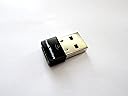
The Panda Wireless Ultra WiFi USB Adapter delivers up to 150Mbps on 2.4GHz Wireless-N networks, supporting a broad range of operating systems including Windows 7-11 and popular Linux distros. Its plug-and-play design ensures quick setup without driver installs, while dual infrastructure and ad-hoc modes offer versatile connectivity. Lightweight and compact, itโs ideal for professionals seeking reliable, secure wireless performance on any device.


| ASIN | B00762YNMG |
| Best Sellers Rank | #119 in USB Computer Network Adapters |
| Brand | Panda Wireless |
| Color | black |
| Compatible Devices | Laptop |
| Compatible Operating System Family | ChromeOS, Linux, MacOS, Windows |
| Customer Reviews | 4.4 out of 5 stars 1,788 Reviews |
| Data Link Protocol | USB |
| Data Transfer Rate | 150 megabits_per_second |
| Hardware Interface | USB |
| Item Dimensions L x W x H | 5.6"L x 3.8"W x 0.4"H |
| Item Weight | 18.14 g |
| Manufacturer | Panda |
| Mfr Part Number | PAU03 |
| Minimum Required Operating System Version | Windows 7 |
| Model Number | PAU03 |
| Number of Items | 1 |
| Number of Packs | 1 |
| Product Dimensions | 5.6"L x 3.8"W x 0.4"H |
| Unit Count | 1 Count |
D**B
Good Value and Performance with Win 10
Following upgrade to Win 10 my Dell XPS laptop became unreliable on my home network. My judgment is that the network card drivers are at fault since Dell has stopped supporting upgrades for my particular laptop model. So I opted for the Panda USB device since it was low cost and among a limited subset of these products that support Win 10 out of the box. And true to their claims the device has been totally PnP. I just plugged it in and only followed the quick set up instructions (I did not install the Panda drivers from the product-provided CD). It immediately found my network, and upon logging in I was up and running with good reliability and performance. Connectivity has not been totally flawless in the month or so I've been using the device, but the number of times the connection has hanged have been very limited. Performance (processing speed) is good as I qualitatively detect no difference in web responsiveness and download speeds as compared to when my laptop was set up on Win 7 Pro and its internal net card. In sum, at this price point the device is a very good value and performs well -- so with no real issues I'll go 5 stars.
M**T
Linux Mint 15 user
I have just had this item for three days now, but so far I'm impressed. My internet service is through Verizon Wireless Mobile Broadband using a ZTE 890L hotspot. I own two laptops, one with Linux Mint 15, the other with Windows 7. My Linux laptop is the one I prefer to use the most, but I've been having serious problems with my internet connection going away. The problem was only with the Linux laptop and always when it was warm inside (over 80 F). So ordering this USB WiFi device was an experiment to see if using an alternate WiFi transmitter would solve my problem. So far, the answer appears to be yes. It has not dropped my connection once. Now for those of you running Linux, here's my experience with the install. I plugged it into a USB port, and stared at my screen for a bit wondering "OK, now what?" The next step is to go to the networking icon at the bottom of the screen. Left click to get the list of available WiFi connections. You should now have a a double list if you have WiFi built in. If you have a computer with no WiFi, then it will be a single list. If you did not have any WiFi before, you will need to right-click on the icon and enable networking and WiFi. Click on the device you wish to connect to and enter the password (if appropriate). You can edit the connection to autoconnect when the connection is available. If you have a double list, look for the set for the Ralink device. I had my connection set up to connect automatically, so it fired up BOTH WiFi devices next time I booted. Went back in (edit connection) and unchecked the autoconnect box for the original Realtek WiFi. BTW, the Panda device has a small blue light that lights up when it's working, if that helps. It looks like I have found a $10 solution to a failing built-in WiFi transmitter. I will report back if I have any problems. Update: January 2015. It began to overheat and disconnect. I replaced it with an Edimax EW-7811Un (which is working well) sold here on Amazon. I suggest if you find a WiFi adapter that works for you, keep a spare.
P**L
... in my 2 year old HP Notebook Computer went bad. Suddenly I was faced with the discouraging prospect ...
I lost Internet access when the wireless internet adapter in my 2 year old HP Notebook Computer went bad. Suddenly I was faced with the discouraging prospect of needing to spend several hundred dollars for a new notebook computer. Fortunately the Panda Wireless Adapter came to the rescue. It simply plugged into my Notebook UBS port. I had some problems installing the software due to software conflicts. I contacted Panda Technical Support for help. The Tech Support person (John) was terrific. John was very professional, knowledgeable and patient. He knew exactly what I needed to do to make it work. His instructions were very clear, detailed and exact. John made it clear to me that he would work with me, to do whatever it took to get it up and running. He got it done. Because of this terrific little device and great Tech Support my Notebook Computer is running as good as new, with full internet access that seems faster then when new. A new Notebook would have cost me around $800. Instead, I spent around $10 for this little plug in wireless internet adapter. Now my Notebook runs like it was new. Of course I'm thrilled!!!! Also, the adapter is tiny. When plugged in to the UBS port it sticks out less then half and inch. The tiny Panda Wireless Internet Adapter and Panda customer service far exceeded my expectations. For anyone who has a Notebook Computer that lost internet access due to an internet adapter problem, I highly recommend buying the Panda Wireless Adapter. It works great.
J**N
Really Helped with Raspberry Pi 4 & Raspberry Pi OS
The on-board wifi adapter with this model of Pi was badly dropping connections in Raspberry Pi OS, requiring a reboot each time. I tried another USB Wifi Dongle with the Pi. The connection was stable but throughput was anemic & very slow. I heard that Panda adapters worked well with Linux distros, so I tried this one. This device has given my Raspberry Pi 4 new life. I can now video stream at 1080p & 720p instead of 360p, and file downloads & transfers are 10 times faster than before, though transfers can be a bit sluggish at times. This Panda model is highly recommended. Let me add that you still have to turn off the drivers for the Pi's onboard wifi card. Of course, backup your system and Google this for more information so that you understand what you're doing before adding this code to your Raspberry Pi OS system. Also note that this code only works for Raspberry Pi OS, as far as I know. To turn off the drivers for the onboard wifi card, create a text file using the following sudo command: sudo mousepad /etc/modprobe.d/raspi-blacklist.conf In that file, add & save these 2 lines: blacklist brcmfmac blacklist brcmutil Shutdown, plug in the Panda wireless adapter, and power on. The new adapter worked for me automatically, on a plug-and-play basis.
J**N
Panda Ultra Wifi b/g/n 150Mbps Wireless-N 2.4Ghz USB Adaptor
I give this device 5 out of 5 stars, since it completely and fully works with all three of my OS's. I triple boot OSX 10.7.5, Windows 7 Home Premium and Debian Linux 6.0 (Squeeze). The Linux driver on the install CD, as well as the one on the support website works flawlessly, although I did have to recode the config.mk to build properly. **SEE LINUX README BELOW FOR DETAILS AND HOW-TO*** Basically, add this to the config to allow for proper build on linux kernel. Tested on Crunchbang Linux (Statler, BPO and Testing), and Debian Linux (Squeeze/Wheezy/Sid) : ### INSTRUCTIONS TO ALLOW FOR SUCCESSFUL COMPILE ON DEBIAN LINUX (SQUEEZE) OR ANY OTHER LINUX THAT DOES NOT SUPPORT THIS DEVICE OUT OF THE BOX. KERNEL 3.0+ HAS NATIVE SUPPORT BTW on ANY LINUX. USEFUL FOR 2.6 AND BELOW KERNEL. ##### This device uses the RT5370 kernel module.. ******** READ ME LINUX COMPILE KERNEL 2.6.34.13 and BELOW ****** HOW TO COMPILE AND LOAD ****** Ralink RT5370 ***** usb device support. Code: This is the changes needed in the config.mk located in the WiFi Driver\Linux directory on the install CD. I used the archive utility on Linux to unpack the directory, which is named ( "2011_0719_RT3070_RT3370_RT5370_RT5372_Linux_STA_V2.5.0.3_DPO" ) The config.mk file is located in the OS directory. # Support Wpa_Supplicant HAS_WPA_SUPPLICANT=n Now change the "n" to a "y" (Without quotes of course!) Now scroll down again until you find(should be right under last one): Code: # Support Native WpaSupplicant for Network Maganger HAS_NATIVE_WPA_SUPPLICANT_SUPPORT=n Like before, change "n" to a "y". Save. Now, we have to blacklist some other conflicting drivers. Open Terminal again. Type: Code: sudo gedit /etc/modprobe.d/blacklist.conf **You could also use nano just in case you don't have a GUI installed as of yet, or VIM. Any text editor will work for this. NOTE: you can open the blacklist file with you preferred text editor besides gedit if you like. Scroll down to the very bottom of the blacklist file. Type: blacklist rt2800usb blacklist rt2870sta I'm not sure if blacklisting rt2870sta does anything, but I do it just in case. Save. Reboot (IMPORTANT TO UNLOAD/LOAD NEW CONFIGS!!) Once back in at the desktop, open Terminal. "cd" to your Desktop. Code: cd /home/YOURUSERNAME/Desktop Replace your "YOURUSERNAME" with your Linux username. Once you are "cd" in to your desktop, you need to "cd" again to your ralink folder. Code: cd ralink You can change the name "ralink" to whatever you named the folder. ***** Code: AS ROOT: apt-get install module-assistant (needed to pull in kernel headers and relevant compile tools for build) AS ROOT: m-a update (this will update module assistant AS ROOT: m-a prepare (this will install gcc compiler 4.3, make, and relevant kernel headers for proper compiler setup) AS ROOT: EXIT module assistant (return to build directory) su (to switch to root user...enter password for root at prompt for password) make clean make make install modprobe rt5370sta exit During "make", if you get warnings, don't freak out. It's ok, just basic compiler warnings..no biggie. Now, if it worked correctly, Network Manager should be able to find networks and connect to them. Congrats! You got your net working! You may or may not need to reboot after you do the modprobe of the kernel moduel, as I found a reboot unneccessary for Crunchbang and Debian Squeeze. Happy browsing!
G**.
Plug and play
Plug and play with Parrot OS on Rapsberry Pi 5.
K**Y
Works well on my old XP laptop!
I have an 11 year old Windows XP laptop which I connect to the internet via a 10 year old NetGear WG511v2 card. When I recently moved and Verizon Fios upgraded my wireless router to their latest and greatest router, all of a sudden my old laptop would not connect to my wireless network. After some frustration, tech calls, and intense Google-ing, I discovered the reason was that my old WG511v2 card did not support WPA2 network encryption, and only supported the older, less secure, WEP encryption protocol's. I was left with two options... upgrade to a wireless card that can handle WPA2, or manually switch my new router to the older WEP protocol. Sooo I tossed my old card in the trash and ordered this one which stated it works with WPA and WPA2 encryption. When it came in the mail, I installed the drivers as per the instructions on the CD it came with. I plugged in this little guy, and BOOM! I was back online within minutes. I even got a friendly email the manufacturer (through amazon) saying to contact them if I have any questions. Since set up was so easy I didnt need to call, but it was nice they did that. The only negative I have noticed thus far is signal strength. My Verizon Fios plan gives me 50Mbps/25Mbps-Upload/Download speeds. So I should be able to acheive 25Mbps since this states it can handle up to 150Mbps.. however even when I am right next to my router I get 10-15 max. This is still by far enough to browse the web, download MP3's, stream youtube, etc. However if I try to stream and browse at the same time, or while downloading MP3's, things slow down a bit. And if I am a couple rooms over or outside the signal gets even worse. I dont mind the slightly weaker signal, especially since it is a small unit and it so cheap. Plus I only use this old laptop for web-browsing and updating my iPod. All of my gaming and streaming is done on consoles or my iPad anyways. So I just needed something to connect my old dinosaur of a laptop and this did the trick. If the signal strength was better I would have given 5 stars, but all in all as long as it doesnt break, Im happy. If you want an easy, inexpensive, way to connect to networks with the latest protocols, this little adapter should do the trick. EDIT: I fixed my weak signal problem by enabling "Windows Zero Configuration" in XP. This solved my weak signal issue and now this little bad boy is giving me 70+ Mbps, which is more than enough. It also maintains good strength in adjacent rooms from where my router is. So I upped this from 4 stars to 5. Now I can keep rocking my 10+ year old XP Laptop!
F**4
Great and cheap alternative for Macbook users
I have a 2009-2010 Macbook Pro 13 inch, and I recently messed up my wifi hardware while swapping hard drives. After seeing that my Macbook was reporting "no wifi hardware installed," I realized the cheapest option would be to try a USB wifi adapter. I went with this one after seeing that it is Mac compatible and had great reviews. The company sends an email a day or 2 after ordering it that contains information on downloading the software. Since my Macbook didn't have internet connection, I used a different computer, downloaded the software, and put it on a thumb drive for my Macbook. I then used this info from a review on here by Corey Coogan: "After reboot, I inserted the usb device and the Wireless Utility popped up automatically. This part is a little less intuitive. To setup your home network (I am using an Airport Extreme): 1. From the Profile tab, click the Add button at the bottom. 2. From the new profile dialog, give your profile a name and choose the network or type in the SSID. 3. Switch over to Authentication and Security by clicking the tab/button with that name. 4. You probably want WPA2-PSK for Authentication Type. 5. For encryption, choose AES. 6. Put your password in the WPA Pre-Shared Key 7. Hit OK 8. Form the Profile screen, hit the Activate button at the bottom." This made setup super simple and took about a minute. Great product.
N**1
Thnaks
Great product, very useful ๐
T**P
perfetta
funziona perfettamente e non da problemi, con i sistemi operativi linux. l'attacchi e funziona senza installazioni ed altre cose del genere. ottima
V**N
Panda Ultra.
Expensive but it is good in use with Tails and Mac .
J**S
Buen producto
Todo bien gracias
J**G
Todo correcto
Funciona perfectamente para sistemas linux
Trustpilot
1 month ago
4 days ago