Desertcart purchases this item on your behalf and handles shipping, customs, and support to South Africa.
🖨️ Elevate your workspace with vibrant, sustainable printing—because your creativity deserves the best!
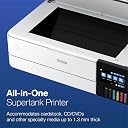
The Epson EcoTank Photo ET-8550 is a wireless, wide-format all-in-one inkjet printer designed for professionals and creatives. Featuring a cartridge-free system with 6-color Claria ET Premium inks, it delivers lab-quality photos and sharp text up to 13x19 inches. With up to 2 years of ink per refill and the ability to print 4x6 photos for just 4 cents each, it combines cost-efficiency with eco-conscious design by eliminating cartridge waste. Additional features include scanning, copying, auto duplex, and compatibility with PC and mobile devices for seamless wireless printing.


| ASIN | B08R5M2HDH |
| Additional Printer Functions | Copy, Scan |
| B&W Pages per Minute | 16 pages_per_minute |
| Best Sellers Rank | #3,103 in Office Products ( See Top 100 in Office Products ) #9 in Ink Tank Printers |
| Brand | Epson |
| Built-In Media | EcoTank Photo ET-8550 all-in-one, Quick Setup Guide, Power Cable, CD-ROM (User Guide, software), 1 bottle of 552 Photo Black (70 mL), 1 bottle of 552 Black (70 mL) and 1 bottle each of 552 Cyan, Magenta, Yellow, Gray (70 mL) (4) |
| Color | White |
| Color Depth | 48 bits |
| Color Pages per Minute | 12 pages_per_minute |
| Compatible Devices | PC, Smartphones |
| Connectivity Technology | USB |
| Control Method | App, Touch |
| Controller Type | iOS, Android |
| Customer Reviews | 4.0 out of 5 stars 2,686 Reviews |
| Duplex | auto |
| Hardware Interface | USB |
| Ink Color | White |
| Item Dimensions D x W x H | 29.8"D x 20.6"W x 16.9"H |
| Item Type Name | Inkjet Printer |
| Item Weight | 24.5 pounds |
| Manufacturer | Epson |
| Maximum Copy Resolution Black and White | 1200 x 4800 DPI |
| Maximum Copy Resolution Color | 5760 x 1440 dpi |
| Maximum Copy Speed Black and White | 16 pages_per_minute |
| Maximum Media Size | 13 x 19 inch |
| Maximum Print Resolution Black and White | 5760 x 1440 dots_per_inch |
| Maximum Sheet Capacity | 100 |
| Maximum print Resolution Color | 1440 dots_per_inch |
| Model Name | ET(EcoTank) Photo ET-8550 |
| Model Number | ET-8550 |
| Model Series | ET |
| Other Special Features of the Product | Refillable Ink Tank |
| Output sheet capacity | 50 |
| Paper Size | 13 x 19 inches,11 x 17 inches, 8 x 10 inches, 5 x 7 inches, 4 x 6 inches, 3.5 x 5 inches,A3,A4,Legal,Letter,Executive,A6,Half Letter |
| Power Consumption | 150 watts |
| Print media | Glossy photo paper |
| Printer Connectivity Type | USB |
| Printer Output Type | Color |
| Printer Type | Inkjet |
| Printing Technology | Inkjet |
| Scanner Type | Photo |
| Special Feature | Refillable Ink Tank |
| Specific Uses For Product | Home |
| UPC | 010343952492 |
| Unit Count | 1 Count |
| Warranty Description | 1-year limited warranty |
| Warranty Type | Limited Warranty |
T**E
TERRIBLE WOULD NOT SUGGEST BUYING
I just received my printer a couple of days ago. So far so good. Mind you I am going on 85 years old and was able to just follow the directions and get it done It took me 2 1/2 hours to set it up as I had to remove all the tape, fill the ink cartridges, do the alinements, figure out the trays and what they went to. Clean up all the garbage and get ready to install the software. You cannot not have your computer connected to the printer while you are doing this. Just follow the directions and you will be fine. Once you have followed all the instructions, you can set up your wireless connection or connect through your USB connection. I chose the USB connection. As my last printer was an Epson Stylus Pro Injet 3880, which printed large format paper I was not too thrown by the page inserts. I will have to say that the output tray is very flimsy. But, just be carefull when you push it back in and you will be fine. I love the fact that when you get ready to print the tray comes out automatically. I find that amusing. I do like seeing the ink capacity in the front of the printer. I had been using my husbands HP All In One so I was used to the front panel and touch screen. The scanner worked perfectly except it took me awhile to work through the software. I did run a print using the high setting, photo luster paper and it created a beautiful print. However, because I work in graphics I need to calibrate my monitor and check the print color to see if I need to reduce the red a little in my On One print settings. I have not printed on my 19x20 sheets yet, so will get back later when I do all my adjustment for quality and then do those prints The paper capacity is fine for my everyday printing, although my epson 3880 could use alot more at a time At this point, I am very happy with what I see. WELL NOW THAT I HAVE BEEN TRYING TO USE THIS PRINTER FOR EVERYDAY PRINTING OR PHOTO PRINTING I CANNOT FIGURE OUT WHICH CASSETTE TO USE. I HAVE PUT PAPER IN BOTH THE BACK FEEDER AND THE CASSETTE @ 2 AS I CANNOT FIGURE OUT WHICH CASSETTE IT IS GOING TO PRINT FROM I AM GOING TO SEND IT BACK AS I CANNOT NOT REACH ANYONE AT EPSON CONCERNING ANY ISSUES. ALL I GET IS EMAIL MESSAGES ASKING ME DIFFERENT QUESTIONS OF WHICH I HAVE ANSWERED EVERY TIME. I CANNOT FIND A PHONE NUMBER ANYWHERE SO I CAN TALK TO SOMEONE. I HAD AN EPSON STYLUS PRO 3880 FOR 13 YEARS BUT FINALLY HAD TO REPLACE IT. WELL QUESS WHAT I REPLACED IT WITH THIS ONE. UNLESS YOUR AN EPSON TECH AND HAD BUILT THIS MACHINE I WOULD LOOK ELSE WHERE. SOOOOO SORRY I LEFT A POSSITIVE REVIEW BEFORE USING IT MORE THAN TWO TIMES
P**R
A great printer, economical ink, and 13” x 19”
*** Update September 2026 *** I still enjoy working with this printer. I do a lot of 13x19" prints. Lots of color, and texture. It's all printed on Moab, Red River, Epson or Hahnemühle paper. Yesterday I finished up a set of prints for a gallery opening. Everything printed with a few minor color issues that were resolved after some color correction. Today I decided to do maintenance on the printer to keep it in top shape. What happened next gave made me think the printer had died. After the cleaning session an error message said torn paper in the printer. Please turn off and on. I did. The same came back. I took the printer apart no paper, and still the error message. I turned the printer on and off for 30 minutes, same error. I took the printer apart again. Same error. At this point I'm thinking this may be issue with the electronics. I got the Epson AI on line. Do this, do that, what's the error code. That code doesn't match to this printer. UGH. I started shopping for a replacement printer. I was freaking out as this printer is only a year old. I finally talked to my trusty Gemini AI, it gave me a list of things to do. The last suggestion was feed a thick 300 g piece of photo paper through the rear rollers slowly push it through the rollers. I did this a couple of times, turned the printer on, and volia everything came back and works perfectly. The lesson here is that printers are physical devices, motors, gears, electronic, sensors, belts, and more. Think of them as cars, that require maintenance and care. They don't like dust, pieces of paper, and being treated roughly. The big lesson learned here is that I will no longer contact any manufacturers AI, I will ask my trusted partner Gemini who always can find a solution. I am glad I still have an old Canon Pro 100 as backup. I have used this printer frequently for a year. Overall, it works well and produces both b&w and color prints I sell in a gallery. I have used an assortment of high quality papers from Epson, Illford, and Red River. Even after a mishap with a paper being feed through wrong side up causing a mess on the rollers, a few cleaning cycles cleared them up. If you are using thick paper make sure you have the thick paper setting turned on. I didn’t want a scanner but it has come in handy on more than one occasion. Primarily I make 13” x 19” prints, the ink tanks are great and my costs have gone down compared to my Canon Pixma Pro which uses a lot of ink. The price of ink for this printer is very reasonable. Setup was easy and no issues with using the printer. Highly recommended!
K**R
DON'T ORDER THIS FROM AMAZON IT VOIDS THE MANUFACTURERS WARRANTY
THEY VOID THE WARRANTY! I've had my printer for about 8 months now, and for the most part, I really enjoy the printer, though it had some weird quirks which I assumed were just because it was an inkjet... WELL, 8 months later, it keeps getting worse. And fun fact: if you buy it through Amazon, it voids the manufacturer's warranty, so if something happens to your printer, it's on you to get it fixed. I routinely get errors that the main paper feeder can't find the paper, but after messing with it a bunch, you can get it to work. I mostly use the rear feeder. The manual feeder is very finicky, so if you plan to use that, be prepared to be frustrated. Mine is also very loud even on the quiet setting. My issue mostly started because of clogged print heads, I assumed. My printer randomly leaves drops of ink on the paper from very tiny to a bit smaller than a dime. Usually, a few deep cleans fix it for a few sheets. Well, I finally had enough and had ordered some extra ink, so I decided to do a deeper level cleaning, which somehow made things worse... extra clogged, and somehow there's blue in my yellow, making green when I test pages. Letting it sit didn't help, so I called Epson for help. I got a Cricut from Amazon years ago and spent a lot of time on the phone with them because my Cricut came broken, and a year later, I got it figured out. So I don't mind sitting with customer support and I'm happy to do it if i can fix my stuff. Well, to my surprise, after the customer service people being nice and helpful, they tell me that upon looking at my receipt, the manufacturer's warranty is voided. After complaining and doing some research, you have to look at where Amazon states "sold by" to see where they are shipping their stock from. If it's by a third party (not Amazon), it voids their warranty. When you need support, though, Amazon sends you directly to Epson's support. Upon contacting the seller, they viewed my message and immediately closed my help request as well. So now I posted for help on Reddit, and I'm going to see if I can fix the issue at home since the warranty is voided anyway, and order a new one directly from Epson (the printer is actually so nice... if it wasn't for this issue. I came from an HP DeskJet, though, so I'm easily impressed). It's messed up my small business; till I can get this resolved, I can't print stickers, thank-you cards, or tags for my handmade plush toys. I'm out $600 for 8 months with a printer, so heed my warning.
C**F
Epson finally did inkjet printing right
Congratulations Epson I don't hate you anymore. I have had Epson inkjet printers for about 30 years. For my work as an artist I usually buy this size wide carriage 13x19. However I have never ever advised that anyone else I know buy a color inkjet printer unless they absolutely need one. I have two black and white laser printers that I adore because they just work, lightning fast, the toner is cheap, the print quality is excellent. My parents for instance have against my advice had a couple of color inkjets because they very occasionally want to print in color. Misery. The ink cartridges are always empty the heads are always clogged and the thing just refuses to print in black and white even though the black cartridge is full but one of the color cartridges is empty. My old Epson r2880 has eight tiny little cartridges and one or two of them are ALWAYS low or empty and they are crazy expensive. The cartridges are also chipped so that you can't use anyone else's aftermarket cartridges, and there's a whole industry dedicated to getting around these issues. In my opinion it's a terrible business model for a printer company because you make your customers hate you, go to great lengths to buy cheaper ink from other companies, and it all discourages them from using the printer and doing a lot of printing and buying your other supplies like paper. Well I read an awful lot about these new tank style printers and how they could potentially solve most of these issues. And I have to say I think they have nailed it. This printer is an absolute joy to use and you just look for excuses to print anything. The gloss prints on Epson ultra premium paper are simply the finest gloss prints I've ever seen. The ink tanks are huge and transparent so you can tell how much ink is in them and the ink lasts a way long time and it's really not that expensive. The ink bottles are actually kind of brilliant you can't put the wrong ink in the wrong tank cuz the nozzles are different shapes and they don't drip ink at all or anything. You can top them up at any time it's beautiful. Turns out you really don't need 8 or 10 colors to print gorgeous luminous prints. I am happy to buy Epson brand ink under these conditions. I mean I could still buy a different company's ink and put it in these tanks but why would you?I've always liked Epson photo paper and use it almost exclusively. I actually tell my kids to go and use the printer all they want. My neighbors too. If there's a print you think you might like print it for goodness sake! Print it larger! Now see Epson: THAT is a business model. I had trepidations as this is a die ink printer. Everyone says artists should "use pigment inks for archival longevity". I've decided I just don't care. Pigment inks tend to clog. They actually don't look that good on glossy paper did anyone ever tell you that? They need a special varnish coat in order for the gloss to pop. If one of these dye prints fades in 20 years you know what it's digital files, I'll just go print the darn thing again it's not that expensive on a printer like this. I even kind of like the Epson print layout software, even though it looks like it was designed in the Windows XP era, and the scanner and it's software work quite well. I've had Epson flatbed scanners also for years and this one being built directly into the printer is just very useful. The touch screen also works well and you can quickly run off a copy which I've never really been able to do before, because I've had a separate printer and scanner and it's just too much of a pain to fire them both up and get on the computer. Also the wireless print function is really great. I can print a 4x6 from my phone in a few clicks, or a PDF from my tablet, what have you. There's even a special paper slot just to hold 4x6s in addition to other paper, gloss full sheets in the rear feed, plain paper in the bottom tray. They really have kind of thought of everything with this printer. If I need to do some serious black and white printing of text I will still use the laser. On cheap copy paper the inkjet looks a little fuzzy and is actually not waterproof. But if I didn't have a laser I wouldn't go out and buy one because one printer is better than two. Just use inkjet plain paper and you'll be set This is a printer I can happily recommend to basically anyone, and I have never been able to say that about a color ink jet before.
G**N
The most satisfying ink jet printer I've ever used {w/Update}
The TLDR for this is the review title. {UPDATE}. It's still satisfying! It cost about $200 US more than I wanted to pay, and I tried mightily to find something else that was cheaper! But in the end, this was the only printer that I could actually say met my needs to support my serious "artsy" amateur photographer large print habit. I am pleased to say that it is worth every cent. I've had it about a week, and I've printed a LOT of photos (Maybe 30, or so), just to test it out. And the ink tanks aren't even down to the 25% used level. All printer Ink is expensive, but the way the Epson Ink is packaged and sold, it is projected to save the typical user about 80% in ink costs over the life of the printer. I believe this is a reasonable estimate based on my current usage, and I haven't even started my real printing yet. The print quality is excellent. Is it as good as one of those giant commercial grade printers? Probably not. But when I used good Epson and Canon printer paper, I thought it was as close as I could reasonably get for something that costs less than $1000 US. To be honest, I also printed on cheap Kodak paper, and while it wasn't quite as sharp and the color wasn't quite as accurate as the premium paper, it was still more than adequate, GOOD, even. Certainly good enough that Granny, Gramps, and Mom are not likely to notice. So cheap paper is not off the table for some print jobs. It's reasonably quiet and well built. My office area is right below my bedroom and I have no fear of it being heard up there. It's big and heavy and doesn't make the table it sits on wobble; it's rock solid. I like the large color LCD screen. I haven't had to clear any paper jams yet but access for clearing them is from the back and very easy to get to. The only negative I've encountered is that the auto select for which paper tray to use is unreliable. I've found that manually selecting the paper tray reduces the amount os swear words I use during the day! Go with the manual tray selection, or your kids will learn words you don't want them to know. I tried the scanner once, it works well, but is no better than any other all-in-one printer. I suspect all the printers of this type use the same type of scanner, possibly from the same manufacturer. You won't hate the scanner, but it's not going to stand out in your mind either. This is the perfect All-In-One printer for serious photographers on a budget who need to use paper that is 13 inches wide. If you can get by with standard letter size printer paper there is an almost identical printer that is a bit cheaper, but delivers all the other features of this one. (ET-8500) I am VERY happy with this printer, and I would buy it again, and I would recommend it to a friend. {Update}. 1 year after purchase. I'm still on my first set of ink bottles. After my initial rush of printing, I calmed down some, and I now print a photo, say, once every week or so. My wife will print a few color spreadsheets and documents with it roughly every two weeks or so. I will probably use OEM ink when I do need to buy more ink. I'm not sure how to tell if the maintenance/overflow tank is full though. I hope the printer will tell me when it needs to be replaced. My problem with auto tray selection has been resolved, not sure why, or how, but I've gotten used to manual tray selection, and don't feel like changing my workflow. {END Update}
M**N
Large Format
It is a nice, large format printer. As others have said, it does take quite a bit of setting up. You have to go hunting for blue tape to remove all over the unit. Nooks and crevices. Instructions don’t help much in this regard. Filling the ink reservoirs is easy, don’t try to help, just let gravity do its job. The ink automatically stops filling when the reservoir is full. There seems to be about a third of the bottle left after filling. I like the motorized output tray that stores inside the printer on the push of a button, and emerges when you’re printing. I have not got it to fill a 11 x 17 photo sheet with image. It seems to limit the image size with excessive borders. Strangely Tray2 is the main tray. Tray 1 is for 4 by 6 photo paper. Tray 1 only holds about 50 sheets of paper. That it has a dedicated CD tray is unusual these days, but I like it. It is quiet, has a significantly smaller footprint than my old large format printer. Photo imagery is excellent. Display is very good. The flatbed scanner does not have a feeder, nor does it scan 11x17 originals. Something bigger than a 8.5 by 11, but not by much. Software app on my PC seems fairly robust. My iPhone had no trouble finding it once it was wirelessly connected to my network. Rear tray feeder for 11 by 17 sheets, and apparently longer paper for those inclined. That it is not much more expensive that the standard format printer available in the series is impressive.
S**H
Scanning Function Review
My mother passed away this past May and I was scared of losing pictures of her to time. I purchased this all-in-one because I wanted to digitize old photos, restore them, and print my favorites. I received the printer yesterday and have only tested the scanning function, so far. I was initially concerned because I had read that there weren't drivers for Windows 11 or the newest versions of Macs, but I had read on their website that there might be some drivers that would still work. Setting it up was relatively easy, though the "cassettes," as the trays are called, could be better labeled. It took me a while to figure out where cassette 2 was to load paper for the calibrations. Ink is super easy to fill and the calibrations weren't hard either. I used my iPhone for set up (you'll need to download the Epson Smart Panel app*) and connected my MacBook Pro running Ventura 13.4.1 to it once set up was complete. It was easy going to epson.com/support, searching for the printer, and downloading the drivers. The computer and laptop must be on the same SSID or they will not be able to communicate. (I mention this because I normally keep my laptop/phones/IoT devices on different WiFi networks.) I started by scanning an 11x14 of my mother's senior photo. This was a little frustrating because parts of the picture would be cut off and I could see no obvious way on the scanner or my phone to adjust this. Only one device can be actively attached to the scanner at any one time, so I had to close the application in the phone completely and go back to the home screen on the scanner. Once that was done, instead of hitting scan on the scanner screen and telling it to send the image to my computer, I had to open Epson Smart Scan on the computer and I could finally adjust the settings. I set the scan size to maximum and then could also finally adjust the DPI at which it was scanning. Instead of 200 DPI (default), I set it to 2400 DPI and also did a second scan at 600 DPI for uploading to social media. The other amazing feature is color restoration. I had been watching tutorials for Adobe Lightroom so I would be able to restore all these photos and Smart Scan does this natively (if enabled). The two photos of my mother attached show the before and after enabling the color restoration feature. One thing I have noticed is that occasionally it seems to forget color restoration is enabled. After messing around with it and closing and opening the software repeatedly, I hit "Preview" before scan and it fixed my issue. Using Preview has also fixed an issue where rarely it would scan about only an inch of whatever photo was inside. I have a ton of photos, so it's been a bit slow going, but I love how quality the scans are and the time that's been saved on the back end with the color restoration feature. For someone that has the same uses I do, I would strongly recommend this scanner. I gave it four stars because of the intermittent errors and it could be a little easier to use. It also makes tiny crops to the photos I cannot get it to stop. Most of the time, they don't matter so much, unless a subject is already close to the edge. I will test the print function and update once I've finished scanning all my photos. *You can also scan and print from this app.
D**R
Defect with tray 1 on all units and how to fix "out of paper" & "paper jam"
There is a critical engineering error on tray one. It will cause your tray one to indicate that there is no paper or continually say that there is a paper jam. There are tons of posts about this issue on Reddit. I found one and after reading it found that there is a pretty simple issue. Let's start with the problem, then the solution. You will have this error sooner than later on this printer. Epson knows about it but for some reason has not fixed it even though it fix is super easy. It is so common that we got to printers in a row with the same issue. On paper tray one, you put the paper in and use these little blue slides to adjust and hold in place. Then you put the tray into the slot and when you try to print it tries to pull that paper up to the big rubber roller. This is where the problem is. The bottom of the tray is pushed up by two springs which are two fragile to firmly push the tray where it needs to go. So the printer tries to grab the paper but it grabs nothing and thinks that it is empty or in some cases it tries to grab the paper and gets it partially but not well enough so it calls it a paper jam. How do you fix this? Take paper trays one and two out. Turn the unit over. On the bottom you will see the black roller and two little black rollers and you will see the two springs that were talking about. Take the two springs out with tweezers. Make sure before you do this that you have bought two G2 gel pens. They sell them at Costco in 10 packs. The spring that is in the gel Pen is the perfect size to fit inside of the spring that came out of the printer. Put one gel spring inside of each of the printers springs and reinstall them using the tweezers. It takes about 30 seconds to take the springs out and about 7 or 8 minutes to put them back in simply because it is hard to get them aligned. But with a little bit of patience you will get them back into the unit. That's it, it is fixed. The additional firmness of the G2 gel pin springs will ensure that the tray is pushed up firmly so that the big roller can grab your paper. Not sure why Epson is not just replace the springs with a firmer spring, but if you run into this issue you know that the cost to fix it is simply to pens. The fact that it is such an easy fix and Epson has not put into place that easy fix made me give this printer a one star. Having said that, it is a great printer otherwise.
A**R
Não compraria novamente
A impressora parou de funcionar com 3x de uso. Simplesmente não liga. A impressão da foto é excelente mas não volto a comprar a marca.
I**S
110 only
110 volts, not compatible with Saudi Arabia’s electric outlets
L**S
5 🌟
Really happy with the printer more so since seeing all the impressive features
F**A
La mejor impresora fotográfica de inyección de tinta
Cumplió más allá de lo que esperaba, la calidad de la impresión es muy buena, fácil de instalar y usar, la app para celular es muy intuitiva así como su manejo desde la pc La calidad de las impresiones es muy nítida y viva, ideal para fotografía sobre todo si vas a imprimir un volumen mediano de fotos, ya que en cuanto a su costo beneficio sin duda alguna es de lo mejor que encontrarán
S**A
Received a Defective Printer – Extremely Disappointed
I’m very disappointed with my purchase. I received my printer, but it’s not working it won’t even turn on. I expected a functional product, but instead, I’m left with something unusable. This has been a frustrating experience.
Trustpilot
2 weeks ago
2 months ago