Desertcart purchases this item on your behalf and handles shipping, customs, and support to South Africa.
🚀 Elevate your Wi-Fi game—stay connected, stay ahead!
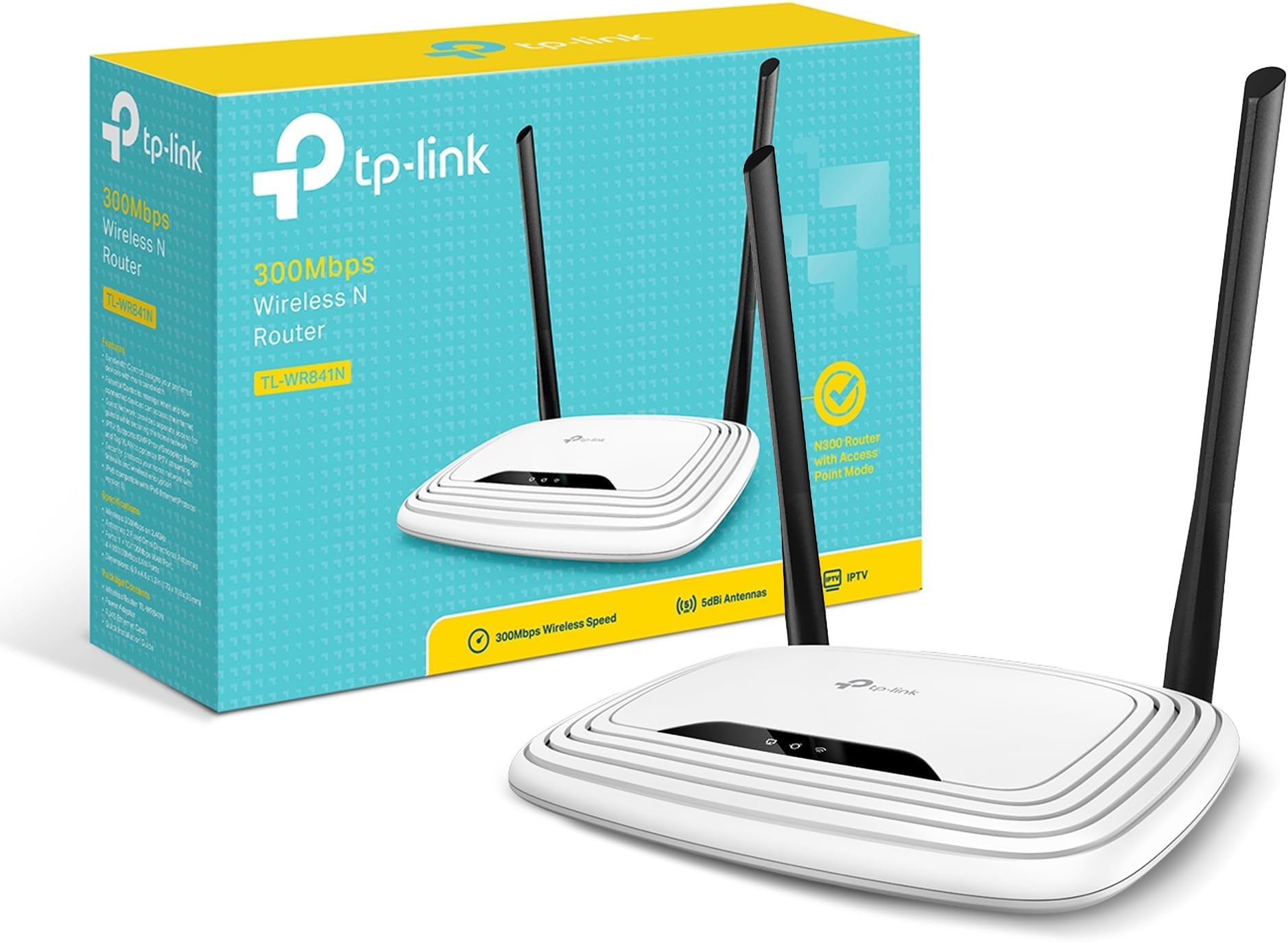
The TP-Link N300 Wireless Extender TL-WR841N combines high-speed 300 Mbps Wireless N technology with dual 5dBi antennas to deliver reliable, wide-range Wi-Fi coverage. Designed for small business and home office use, it supports secure WPA2 encryption with a convenient WPS button, parental controls, and bandwidth management. Compatible with multiple devices and easy to set up, it ensures seamless streaming, gaming, and multitasking across a 50 m² area.


| ASIN | B001FWYGJS |
| Antenna Location | Indoor/Outdoor |
| Antenna Type | Fixed |
| Best Sellers Rank | #10,233 in Computers ( See Top 100 in Computers ) #179 in Routers |
| Brand | TP-Link |
| Built-In Media | 300mbps Wireless N Router |
| Color | White |
| Compatible Devices | Personal Computer |
| Compatible devices | Personal Computer |
| Connectivity Protocol | wi-fi |
| Connectivity Range | 50 Square Meters |
| Connectivity Technology | Wi-Fi |
| Control Method | App |
| Controller Type | App Control |
| Coverage | 50 m² |
| Customer Reviews | 4.3 out of 5 stars 77,652 Reviews |
| Data Transfer Rate | 300 Megabits Per Second |
| Frequency | 2.4 GHz |
| Frequency Band Class | Dual-Band |
| Frequency band class | Dual-Band |
| Has Internet Connectivity | Yes |
| Is Electric | No |
| Is Modem Compatible | Yes |
| Item Dimensions L x W x H | 11.7L x 17.5W x 3.3H centimeters |
| Item Part Number | TL-WR841N |
| Item Weight | 8.82 Ounces |
| LAN Port Bandwidth | 100 Mbps |
| Manufacturer | TP-LINK USA |
| Maximum Upstream Data Transfer Rate | 300 Megabits Per Second |
| Mfr Part Number | TL-WR841N (UK) |
| Model Name | TL-WR841N |
| Model Number | TL-WR841N |
| Model name | TL-WR841N |
| Number of Antennas | 2 |
| Number of Items | 1 |
| Number of Packs | 1 |
| Number of Ports | 5 |
| Operating System | 0, Microsoft Windows 10/8.1/8/7/Vista/XP/2000/NT/98SE,MAC OS, NetWare, UNIX or Linux |
| Other Special Features of the Product | Access Point Mode, WPS |
| Router Network Type | hybrid |
| Security Protocol | WPA2-PSK |
| Special features | Access Point Mode, WPS |
| UPC | 845973051242 |
| Unit Count | 1 Count |
| Voltage | 9 Volts |
| Warranty Description | 2-year warranty |
| Wi-Fi Generation | Wi-Fi 4 |
| Wireless Compability | 802.11b, 802.11g, 802.11n |
| Wireless communication standard | 802.11b, 802.11g, 802.11n |
S**H
Very good
Very good
S**.
Its ok for the price
Average performance sometime hangs
T**M
Billig men bra
Gör det den ska utan problem. Och - vilket var viktigt för mig: den gick fint att väggmontera!
H**1
Inmejorable
Este router neutro TP-Link TL-WR841N es perfecto para usarlo en casa. Dado el precio y el pĂşblico al que va dirigido, tengo que decir que es un equipo inmejorable tanto en precio como en prestaciones. MenciĂłn especial al Wi-Fi, pues ofrece una señal inalámbrica de gran alcance. Pasando a analizar el firmware, dirĂa que el que viene de origen ya ofrece muchĂsimas más opciones que cualquiera de los routers que ofrecen habitualmente las compañĂas de telecomunicaciones. Al parecer, para un uso más profesional, quizás este firmware se queda algo corto. SegĂşn he leĂdo por internet este router cuenta con un hardware estupendo que de cierta manera queda un poco desaprovechado por el firmware que lleva instalado de origen. AsĂ que podrĂa llegar a considerarse casi obligatoria la instalaciĂłn de alguna versiĂłn del famoso firmware de DD-WRT que es completamente compatible y amplia muchas de las posibilidades de este router. Pros: - Fácilmente configurable. - Señal inalámbrica de gran alcance. - EconĂłmico. Realmente es un precio de derribo. - Soporta OpenWRT y DDWRT. Ideal para aquellos a los que les gusta trastear. Contras: - No lleva ningĂşn puerto USB, por lo que no podremos crear un NAS o compartir una impresora. - Tanto los cuatro puertos ethernet para LAN como el puerto WAN, son 10/100Mbps (son Fast Ethernet, no Gigabit Ethernet). La necesidad de comprar un router me vino dada a una serie de viajes que iba a realizar, en los que sabĂa que sĂłlo iba a disponer de una sola toma de ethernet y que obviamente no iba a ser suficiente para cubrir mis necesidades de conectar más de un dispositivo (tanto por ethernet como por Wi-Fi). ValorĂ© la adquisiciĂłn de un router de viaje, sin embargo el sobrepeso y las mayores dimensiones de este frente a las diferentes opciones diseñadas exclusivamente para viaje, no me suponĂan mucha diferencia, ni en lo relativo a lo econĂłmico, ni a lo relativo a las prestaciones. Por ello, me decantĂ© por un router completamente funcional como este, y que bajo mi criterio personal no supone unas dimensiones ni peso exagerados para llevar (obviamente depende de la naturaleza del viaje, que en mi caso era establecerme en varias residencias de estudiantiles).
A**N
Parfait
Avec internet je considère une chose, si ça bug, que c'est lent, ou que c'est trop compliqué à installer, c'est mise au placard. J'avais un petit wifi extender, les fameux petits boitiers qu'on branche directement sur une prise électrique. L'appareil était incapable de prolonger la wifi de plus de 5 mètres, il buggait TOUT le temps, et ça m'avait coûté plus de 40 € ! (un tp-link aussi pourtant) Avec ce router rien à voir... ça s'installe en 5 minutes, ça m'étend la wifi sur 2 étages, et il n'a jamais eut le moindre soucis. Pour les non-initiés j'explique en gros comment ça fonctionne. Vous avez une box, vous y branchez un câble ethernet en sortie, que vous connectez en entrée sur le router. Vous allumez le router, et hop, vous avez un nouveau spot wifi plus puissant que celui de la box, et qui sera éloigné de la wifi de la box en fonction de la longueur de votre câble ethernet. Pour mon cas par exemple, je suis en appartement avec une triplex, 25m2 par étage, box au dernier étage (c'est là qu'est installée le salon et la fibre optique). J'ai pris un câble ethernet de 15 mètres et j'ai mis le router à l'étage intermédiaire. J'ai maintenant de la wifi sur les 3 étages alors que la box ne couvrait pas entièrement l'étage d'en dessous. Le seul ''inconvénient'' est qu'il créé un deuxième spot wifi, donc si votre imprimante est branchée en ethernet sur votre box, il faudra vous déconnecter du router et vous connecter à votre box pour pouvoir imprimer en wifi. C'est pas un drame, et rien ne vous empêche de brancher votre imprimante sur le router. Pour moins de 20 € livré c'est franchement cadeau.
E**C
Great unit for a great price. What's not to like? Instructions for setting up as a repeater / range extender
Instructions for setting up the TPLink WR841N wireless router as a repeater: This is a great unit for a ridiculously low price. It can be used as a repeater (a.k.a. WiFi range extender). Setting this unit up as a repeater is pretty simple, but the manufacturer doesn't provide step-by-step instructions. I noticed some other instructions posted in these reviews had a number of steps that were not necessary, and were missing some steps. Being an Engineer, I couldn't help but proposing an improvement... These instructions assume you are connecting to a WiFi access point (AP) with a working Internet connection. Abbreviations: [example] = example values used during my setup. Yours might be a bit different. SOURCE-AP = the access point / router generating the wireless signal you want to repeat. REPEATER-AP = the access point / router repeating the wireless signal, the one that we are setting up. SOURCE-NET = the SSID (network name) of the wireless signal you want to repeat. REPEATER-NET = the SSID (network name) of the repeated wireless signal. Before starting, gather the following information: - the LAN/wireless side IP address of the control interface for the SOURCE-AP [192.168.3.1] - the subnet the SOURCE-AP is using on the LAN/wireless side. [192.168.3.x] - the SOURCE-NET name [GROUND] - the encryption type and password [WPA-2 PERSONAL, xxxx] - the channel the wireless signal to be repeated is on. [3] To determine the LAN/wireless IP address and subnet of the SOURCE-AP, look at the IP address and default gateway of a device directly connected to the SOURCE-AP. (Open the Network connections folder, click change adapter settings, and view status and then details in Windows). For the channel, it is preferable to go to the SOURCE-AP and set the channel to 3 instead of "auto" so it does not change, and uses an unpopular channel likely to have less interference. If you don't control the SOURCE-AP (e.g. you are connecting to your neighbor's WiFi), you can find out what the channel is during the setup steps below. Here we go: 1. Plug the power into the REPEATER-AP. If any settings have already been changed on the device, press and hold the reset button on the back for ten seconds until all lights are illuminated to indicate reset happening. Reset is not necessary if the unit is fresh out of the box. 2. Plug a PC into a LAN port on the REPEATER-AP with the supplied LAN patch cable. I used my laptop. Make sure the LAN adapter is set to get an IP address automatically. (Open the Network connections folder, click change adapter settings, and view properties in Windows). Make sure the LAN adapter is the only one enabled. Disable the wireless adapter. 3. Open a browser and go to tplinklogin dot net (replace dot with a . - amazon doesn't allow URLs here...) or 192.168.0.1, the default address of the control interface of REPEATER-AP. The default username, password is admin, admin. Don't do the quick setup. 4. Click "Wireless" on the left column menu. On the Wireless Settings page that appears: a. Under the dropdown list for "Channel", select the channel the wireless signal to be repeated is on. [3] If you don't know, skip this step and the unit will force you to select the correct one after the "Survey" step below. b. Click the "Enable WDS bridging" checkbox. c. Click "Survey". A list of SSIDs appears. Click "connect" on the one that is SOURCE-NET. [GROUND] All of the fields are automatically populated except for the password. d. Enter the password and click Save. Wait ten seconds for the processing to finish. e. At the top of the page beside Wireless Network Name, enter an name for REPEATER-NET [R1] and click Save. 5. Click "Wireless Security" on the left column menu. Select Personal WPA2-PSK, AES encryption and enter a password for REPEATER-NET. 6. Click "DHCP" on the left column menu. Click the DHCP disable radio button. Click Save. Ignore the reboot warning. 7. Click "Network" on the left column menu. 8. Click LAN. Change the IP address to one in the SOURCE-AP subnet that is not being used by any other device and click Save [192.168.3.200]. A reboot warning will appear. Click OK and let the unit reboot. 9. The address in the browser will magically change to the IP address you entered in the previous step. This is the new IP address for the control interface on REPEATER-AP. You will be prompted to log in again. You should now have Internet connectivity! There is no "half-hour waiting period" others have noted. Perhaps that was due to misconfiguration. Open a new tab in your browser and go to news.google.com to verify. Wireless devices can now connect to REPEATER-NET. Wired devices can connect to REPEATER-AP. Both get Internet access through SOURCE-AP. Ain't life grand? Troubleshooting: It is possible that it may take some time to negotiate the wireless link between SOURCE-AP and REPEATER-AP. Wait two minutes, then refresh the news page. If that doesn't work, power REPEATER-AP off and on. Try news.google.com again. If that doesn't work, wait two minutes, then refresh again. If it still doesn't work, enter the LAN/wireless side IP address of the control interface for the SOURCE-AP [192.168.3.1] in a browser and hit Enter. If you see the control interface for SOURCE-AP, the wireless link is working! Try entering an Internet IP address, like [...] (one of my sites). If you see a page with content loaded, you have Internet connectivity (hooray), but your computer needs to be told a DNS server to use. In Windows, open the Network connections folder, click change adapter settings, properties, IPv4 properties, advanced, and in the Gateway area type in the IP address of the SOURCE-AP [192.168.3.1], click OK, OK, Close and try again. But none of that should be necessary. I have written these instructions with the unit beside me, following my own instructions and it worked first time. I have actually gone beyond these instructions to set up a chain of four of these units to provide wireless coverage from the basement to the fourth floor of a 150-year-old church with stone walls. And it worked! Good luck! P.S. Don't forget to go back in to REPEATER-AP and change the password. The menu item is hiding under System Tools on the left.
N**R
Solide Qualität/ Funktionalität zu einem sehr geringen Preis! Ein Spitzenprodukt (Preis/Leistung)
Dieser (TP-Link) Router lässt sich sehr schnell und einfach einrichten. Der Router kann über die StandardIP 192.168.0.1 (admin/admin) oder über den Netzwerkordner (Windows7) direkt und ohne zusätzliche Software eingestellt werden. Das Menü reagiert sehr schnell, enthält auf einem Blick alle wichtigen Hauptpunkte. Daneben werden auf der rechten Seite im Menü des Routers anwenderfreundlich auch die Einstellungen (in Englisch) erklärt. Die Funkqualität in unserem mehrstöckigen Haus übertrifft meinen alten Router geringfügig! Alles was ich brauche ist in diesem Gerät integriert. So etwa alle üblichen "Einwahlmöglichkeiten" mit dem Internet Provider, DHCP mit IP-Reservierung, MAC-Adress-Filter und sogar eine kleine Nutzungsstatistik für jedes verbundene Gerät. Bandbreitenkontrollen und Elternkontrollen sowie Port-Weiterleitungen runden das gute Gesamtpaket ab. Und das war noch nicht alles... Was mich sehr freut ist die sehr geringe Leistungsaufnahme von nur 1,5 Watt bei voller Funktionalität! Mein voriger Router "zog" 5,5 Watt. Ein Wermutstropfen war, dass man die Konfigurationsdatei nach dem Firmwareupdate nicht mehr fehlerfrei von der Vorgängerversion laden konnte. Hierzu bedurfte es nach der fehlerhaften Konfigverarbeitung eines Neustarts des Geräts, dann waren die Settings da und auch der Router lief wieder problemlos. Daher empfehle ich das Update VOR der Einrichtung. Zunächst hatte ich auch ein leises Hochfrequenzpiepen des Steckernetzteils vernommen (bin da recht sensibel). Momentan fällt mir kein Störgeräusch mehr auf. FAZIT zu TP-Link TL-WR841N: Ich bin mit diesem Gerät vollkommen zufrieden. Es übertrifft meine Erwartungen. Vor allem die sehr leichte und schnelle Bedienbarkeit bei guter Funktionalität gefallen mir hervorragend. Dass ich inklusive Versand nicht einmal 20 EUR zahlen musste (und mir das Gerät auch sehr schnell zugeschickt wurde) lassen das Produkt in meinen Augen konkurrenzlos positiv dastehen. Wer also einen einfachen, sehr schnellen und leistungsstarken WLAN-Router mit tollem Funktionsumfang sucht kann hier gut fündig werden. Wie die Langzeitstabilität aussieht, kann ich erst in einigen Monaten beurteilen. PS: Zuvor hatte ich ähnliche WLAN-Router anderer (namhafter Marken) in Betrieb in einem Privathaushalt mit zwei LAN-Rechnern und fünf WLAN Clients, die mitunter gleichzeitig laufen. Fazit (ACHTUNG, andere Marken!): Das eine Konkurrenzprodukt hat im Dauerbetrieb in acht Jahren zwei Netzteile "gefressen". Das andere Konkurrenzprodukt ist sehr träge in der Menüreaktion und hat ein furchtbares, hochfrequent piepsendes Netzteil (gibt mehrere dieser Berichte hier bei Amazon) :/
Trustpilot
3 days ago
5 days ago