


Desertcart purchases this item on your behalf and handles shipping, customs, and support to South Africa.
🚀 Keep your data cool and your workflow hotter!
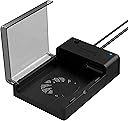
The SABRENT USB 3.0 to SATA Lay Flat Docking Station is a sleek, caseless external dock designed for 2.5" and 3.5" SATA HDDs and SSDs up to 22TB. Featuring USB 3.0 speeds up to 5 Gbps, a built-in cooling fan for enhanced drive longevity, and hot-swappable plug-and-play convenience, it’s the perfect tool for professionals needing fast, reliable, and flexible storage access. Includes free Acronis True Image software for seamless drive cloning.


| ASIN | B013WODZH0 |
| Best Sellers Rank | #13 in Enclosures |
| Brand | SABRENT |
| Built-In Media | Sabrent USB 3.0 to SATA External Hard Drive |
| Color | Black |
| Compatible Devices | Desktop, Laptop |
| Connectivity Technology | USB |
| Customer Reviews | 4.2 out of 5 stars 4,066 Reviews |
| Data Transfer Rate | 5 gigabits_per_second |
| Global Trade Identification Number | 00819921011831 |
| Hard Disk Form Factor | 2.5 inches |
| Hardware Interface | USB 3.0 Type A |
| Hardware Platform | Windows |
| Item Dimensions L x W x H | 7.24"L x 4.88"W x 1.89"H |
| Item Weight | 9 ounces |
| Manufacturer | SABRENT |
| Memory Storage Capacity | 6 TB |
| Mfr Part Number | EC-DFFN |
| Model Number | EC-DFFN |
| Product Dimensions | 7.24"L x 4.88"W x 1.89"H |
| Supported Devices Quantity | 1 |
| UPC | 819921011831 |
| Warranty Description | 1 Year limited |
D**S
Great Storage Docking Station
So i have had this product since March of 2018 and even decided to buy a second unit since i have multiple internal storage drives which i have laying around. This docking station unit gives me the ability to connect any SATA internal drive i have whether its a small 2.5in drive or 3.5in into it. supports up to 6Tb of storage and is really easy to install and connect to my computer for easy access. Because of the side door bay that opens up i can easily slide in and out the hard drives i wish to connect and change with ease whenever i need to see whats on my other drives or transfer data from one another. This unit has a small fan which cools down the hard drive when its running at full speed and will continue to run until you turn off the docking station. Their really isn't much to say about this other then a really great product to have and carry around whenever you need to transfer files from drive to computer or back. The quality control is pretty well made for the price being offered. I'm sure their are far better options out there but they aren't cheap either and some aren't even portable. The max write/transfer speed i have achieved for this product was 150-250MBps which isn't fast but its fast enough to move multiple large files back and forth, it is a usb 3.0 so its capable of reaching higher transfer speed however that will be the limitation of the drive you insert into the docking station and where the usb is being plugged into. Since using it, and i mean using it a lot, i haven't encountered any issues at all, when plugging the unit into my computer it connect in just a few seconds and picks up the drive rather quickly, so far this product has been working flawlessly for me sometimes ill end up leaving it running for long periods of times and it will still function great. I have nothing but great compliments for this product.
D**N
Transfer old school to new school.
Great to retrieve old information from your old tower or desktop to read or transfer to your laptop. I was afraid that old information was lost forever. Works great.
J**E
WELL-MADE; COULD BE BETTER
this is a very well-made almost perfect adapter. There is a review here on Amazon detailing a modification that is inexpensive and greatly improve performance while lengthening the life of your hard drive. The manufacturer really should adopt this inexpensive improvement. That said, it does do the job nicely.
J**B
Cool Docking Station, Even Better Modded!
This is a really cool (pun intended) way to keep an internal hard drives cool. I currently use mine as a backup or to offload pictures from my NAS. The problem is; as it's currently set up, the screen really restrict airflow and I've seen my HDD (HGST 7200rpm enterprise 8TB) hit 45F for long periods of time, and the only way to mitigate that is to open up the case (which defeats the point). Someone posted how to upgrade the unit and I too successfully did it; I went with the following: Cutting board replacement feet package (came with all the screws I needed) https://www.amazon.com/dp/B08PBH875X?ref=ppx_yo2ov_dt_b_fed_asin_title&th=1 An 80mm fan cover from SilverStone (I got 1, and I liked this one as you can still catch dust, or remove the screen if you want more airflow). https://www.amazon.com/dp/B0040JHMHQ?ref=ppx_yo2ov_dt_b_fed_asin_title&th=1 Follow the instructions that the other person posted on here, the ONLY differences that I did were: remove the internal metal screen completely; you will not be jamming your fingers in there while the fan in running, and this will help airflow AND I needed to round the corners of the filter in order to fit the bottom of the case with a file. The screws I used were the m3x16mm and the m3x12mm to secure the filter and attach the feet to the bottom. I ended up going with the .47x.31x.59 feet, and I reused the rubber feet that came with the docking station. My temps dropped to about 35-37C at full load now for over 8 hours of file transfer, so it certainly a difference. Total Cost was $17 shipped. I'll follow up with some pictures later showing the temperatures and setup if you would like to recreate my version. As it, I give the docking station a 4/5 With the mods 5/5
M**4
Potential For Lost Data Or Scrambled Data – Sabrent EC-DFFN Gen 2 External Hard Drive Cases
Issue 1 – Non-Standardized Chips Are Used In EC-DFFN Generation 2 External Hard Drive Cases I was almost locked out from data on two of my 4TB Western Digital Black hard drives that I used for backup data and back up Acronis images. I purchased one EC-DFFN hard drive case in 2023. Initialized and formatted 4TB WD Black hard drives on it. I’ve been backing up data to the 4TB drives on a routine basis. I got 5 more EC-DFFN cases in November 2024 as backup devices in case my original one ever starts to develop issues. What I did NOT know at the time, and have found out since, is that Sabrent does NOT standardize the chips they use in the EC-DFFN cases OR across their product line of other USB hard drive cases. All 5 of my new EC-DFFN cases could not read the data on my 4TB backup drives. Computer Management showed the drive as two partitions of 2TB, not one contiguous 4TB partition. I could not access the hard drive in This PC / My Computer. So, IF my original EC-DFFN external case had stopped working before I discovered this issue, there is NO WAY I would have been able to read and access the data on those 4TB hard drives. Sabrent acknowledges this “issue” when pressed, that the EC-DFFNs have different chips in them depending on what chips they were buying at the time. Their “solution” was for me to first update the firmware on the new (Nov 2024) EC-DFFN cases. Then move the data off my 4TB drives using the first EC-DFFN case I purchased in 2023. Then use the “Clean” command in Windows 10 using the older EC-DFFN case to remove all initialization on the hard drive. Then put the 4TB hard drives in one of the new (Nov 2024) cases and reinitialize and format them and finally move all the data back onto the 4TB drives with the drives being in one of the new (Nov 2024) cases. The bottom line is that these EC-DFFN Generation 2 cases are like having PROPRIETARY cases. Each time Sabrent buys chips from a new source or lot, it renders the new cases not being able to read data on drives that are larger than 2TB. And the “solution” is to move the data off the drive, re initialize it in the newer EC-DFFN drive cases, format it in the new cases, then move the data back on to the drive in the newer EC-DFFN cases, and then throw away the older EC-DFFN cases because they now will not be able to read the drive that its been initialized on the newer EC-DFFN cases. There is a real possibility for your data to get trapped on an external drive if it was initialized and formatted on a EC-DFFN case that stops working and the only cases you have are newer ones with different chips in them. Issue 2 – EC-DFFN Generation 2 Cases, Sabrent Does NOT Recommended On Powered USB Hubs For many years I’ve used Rosewell’s external USB cases with fans and those cases were hooked into an Anker 9-Port AC Powered Hub that then connects to my laptop via a USB A connection. All 4 cases work great to transfer data between the 4 hard drives in the cases (and still work great). Then I purchased several Sabrent EC-DFFN USB cases to use for a specific purpose, backing up data. I liked that the EC-DFFN were quick-access, and I did not have to unscrew and rescrew the external USB case together to insert or remove the hard drive. In the first year of using the EC-DFFN I had not yet discovered the lurking problem because I was just using the EC-DFFN case hooked directly to my computers USB port and not through a hub. Recently I hooked two external EC-DFFN cases to my Anker 9-Port AC Powered Hub and tried to move data from one 4TB WD Black HD to another 4TB WD Black HD and the copy process failed within 5-10 seconds, every time. My Rosewell external USB cases are plugged into this same Anker USB 9-Port AC Powered Hub and have NO issues transferring data between hard drives in my 4 Rosewell cases. With all of those drives powered off, and nothing else in use on the Anker Hub, the EC-DFFN Sabrent cases FAULT out when transferring data from one EC-EFFN case to another EC-DFFN case 100% of the time. Sabrent tried to blame this on my computer and the USB bus (I have a high end $4,000 Lenovo P53) and not their EC-DFFN cases, but that does not old water when I have other cases, the 4 Rosewell for one and 2 SIIG cases also, that ALL CAN transfer data from one hard drive to another hard drive with the external cases plugged into my Anker 9-Port Hub. Also, if this is a KNOWN ISSUE, why does Sabrent not alert the potential buyer on Amazon’s product listing page, on the EC-DFFN’s box, or in the EC-DFFN user’s guide? Let the buyer beware. Know what you are going to be using your external cases for and whether the limitations of that case might be an issue for you and your precious data now or somewhere in the future.
R**2
Sabrent: A Good Docking Station That Can Be Improved With Some Easy Changes
What's Good About the Sabrent EC-DFFN External Docking Station 1. The case is lightweight and well made. 2. It works well. I was able to transfer about 500gb of data per hour. 3. It's quiet and attractive. 4. It utilizes USB 3.0 which is about 10 times faster than 2.0. 5. The included cables are just the right length. What's Can Be Improved 1. The price. I paid $32 for mine. 2. The screens meant to protect your fingers impede the fan's air flow. 3. The rubber feet need to be taller to improve the fan's air flow. The current design creates a lot of back pressure that prevents the fan from operating at its full capacity. The Sabrent EC-DFFN external USB 3.0 docking station is well made. However, it can be improved. Read on if you would like to learn how to modify the case and improve its air flow. That's important if you are going to be running your external hard drives for long periods of time like I do. ********************************************* ONE WORD OF CAUTION: Take your time, you don't want to damage your docking station's case. Tools You'll Need A small Phillips head screwdriver, an Exacto knife and a thin knife or a razor blade. All three will work. This modification takes about 15 minutes to complete. Parts You'll Need 1. Four — 6 x 3/4" Flat Head Screws (Phillips Head) Note: 6 is the diameter of the screw. (These are used to mount the rubber feet.) 2. Four — 6 x 1/2" Pan Head Screws (Phillips Head). (These are used to mount the grill to the fan.) 3. Two — 80mm Computer Fan Grills (sometimes listed as 8cm grills). 4. Four new rubber feet approximately 1/2" by 1/2" inch is ideal. However, the ones pictured in the photos are 1/2" tall by 3/4" wide (tapered, cone-style feet). I already had those, so that's why I used them. How to Improve the Air Flow on the Sabrent Docking Station (Be sure and refer to the pictures for additional help.) 1. First, make sure it's unplugged before you do this modification. 2. Remove the rubber feet on the bottom of the case. They are glued in place. 3. Remove the screws that you find underneath the rubber feet. 4. Remove the screws holding the fan in place and remove the outer screen. 5. Use an Exacto knife or a thin knife blade to pry open the bottom of the case. 6. With the bottom off, wiggle the fan loose from its four anchor posts. 7. Remove the inner fan screen. 8. Slide the fan back onto the posts and press into place. 10. Reattach the bottom of the case. 11. Mount the grill onto the fan by screwing it in place with the Pan Head screws. (Indented side of the grill needs to face outward from the case.) 12. Attach the four rubber feet to the corners of case with the Flat Head screws. (You have now completed the modification.) In my opinion, the docking station doesn't need a grill to protect the inward facing side of the fan because the lid and the drive you insert already do that — just be sure and turn off the power before opening the lid. The fan stops spinning in about three seconds, and only runs when there is a standard hard drive installed. It does not run if you insert an SSD drive because they don't get very hot and don't need the extra cooling. The docking station automatically senses if the drive you have inserted is an SSD or standard (spinning disc) hard drive. Note: If you decide you want to install an inner fan grill you can. Just remember it will make the grill on the bottom bulge out another quarter of an inch. If you do install an inner fan grill, be sure and insert it with the indented portion of the grill pointing towards the inside of the case. Things You Need To Know Before You Connect And Use The Sabrent Docking Station 1. Insert your hard drive and connect all the cables to the case and your PC before you power it on. 2. Turn off the power to the case before you disconnect the hard drive or cables. Note: Once you have powered down the docking station, you do not need to turn your computer off to disconnect it. Think of the docking station as a flash drive you have to power on to use and power off to disconnect. Some Useful Hints You Need To Read Before You Begin This Modification 1. Don' t be in a hurry. 2. Be careful when you pry open the bottom of the case. If you slip with the knife, you'll scratch it. 3. It will be easier to remove the bottom of the case if you use a small, stiff wire that you have formed into a "J-style" hook and slide it into one of the holes left by the removal of screws. Pull up on it as you pry open the base. (A paper clip works great.) IMPORTANT — PLEASE READ: Before you put everything back together, take the appropriate screws (Flat Head or Pan) and semi-install them into the holes in the posts that hold the fan and the rubber feet in place. SCREW THEM IN ONLY HALF WAY to avoid stripping out the plastic threads and then remove them. Doing that, presets the screw hole and makes it easier for you to reinsert them when you do the final installation of the rubber feet and fan grill. However, be careful not to over-tighten them. To work properly, they only need to be tightened to the point that they are snug. One final note, when not in use, turn off your Sabrent Docking Station. It will help extend the life of your hard drives. It's just a guess, but I believe this modification almost triples the air flow — keeping your hard drive nice and cool. That's important if you have tons of data to transfer, as hard drives can get very hot if not properly cooled. By the way, the largest drive I have used in these docking stations is a 10 terabyte drive. So far, they have worked flawlessly.
F**D
A Great Tool to Turn Internal Into External Drives
After my 6 year old computer faltered, I needed a way to access my internal drives to save the data. My PC would not start up, and all I got was a black screen. I created a bootable disk with the operating system on an external SSD and managed to start the device, but it would not recognize my 2 SATA internal drives. Since one was an SSD and the other a traditional hard drive, I wanted an external enclosure that would accept both. The Sabrent was the perfect choice. Once my drives unmounted and connected to the Sabrent, I was able to view the data on each of them, and save it to another computer. The Sabrent comes with a power supply and a USB 3 cable (compatible with USB 2). Once you have unmounted your drive from the computer, simply slip it into the Sabrent, and it works like an external drive. No tools needed. You can turn the Sabrent on or off, but it will go in sleep mode after a certain period of inactivity. It has a fan to keep things from overheating. At no time did I feel the drive was getting too hot. Simple but great little tool!
G**Y
Good buy with a good warranty
The drive case was well built and was very easy to install the HDD. Literally plug and play. I like the see through top to see what HDD is installed at a glance. The cooling fan works only when needed, which keeps it quiet. Sabrent offers an extended 2 year warranty if you register online. Again, quick and painless.
A**C
Bon produit sous les tropiques
Station pour disque dur idéale pour pays chaud, utilisée régulièrement à Tahiti . Donne toute satisfaction après plusieurs années d'utilisation.
M**.
Great product!
It’s easy to use and good value for money. I like that Sabrent provides firmware updates. Tip: Any capacity HDD (even 16 TB+) is now compatible after a simple firmware update if the firmware isn’t up to date. I suggest updating the firmware before simply claiming that the product doesn’t work and leaving negative feedback. The firmware update tool is on the downloads page on the Sabrent website. I booted Macrium Reflect 7 free to clone/image a laptops HDD to a larger capacity SSD and this EC-DFFN Dock did the job perfectly. I updated the firmware from 1.0.4 to 1.1.4 too. I haven’t used it with a 3.5” drive yet. I only had one problem after cloning the HDD to the SSD and although it wasn’t the docks fault, I’ll say it anyway as it may help others: I didn’t set MR to extend/expand the C: (Windows partition) so after cloning the HDD to the SSD there was a large amount of “unallocated space” at the end of the SSD with a partition between it and the C: but thankfully the “Extend Partition Wizard” in “AOMEI Partition Assistant” was able to fix it in seconds. If there’s no partition/s between them then it’s not really an issue as Windows can fix it and you won’t need an app like AOMEI to do it.
M**X
Amazing SATA HDD enclosure. Keep it up Sabrent
One of the best enclosure I have ever used, the size is good and looks fancy, the transfer rate goes up to 200Mb/sec, its easy plug and play with no tweaks or softwares setups. Runs up to 24TB SATA HDD. The drive stay at 34 Celsius even with heavy load and it Does not overheat due to the cooling fan. I had it for a year and it still runs fine. Downside are minimal : 1- The rubber to handle the enclosure below fell off. 2- The fan became a bit loud maybe due to dust collection. I certainly recommend this enclosure and surly will buy more of this.
S**E
Works like a gem!
Works as described. Old SATA HDD with data can immediately be read after plugging in. Truly plug & play!
A**O
Precio - Calidad
La calidad de los plásticos son termino medio, pero a mí lo que me importa es la funcionalidad y seguridad que me da para trabajar con diversas pc's con sus discos duros, muy eficiente el producto
Trustpilot
1 week ago
1 month ago