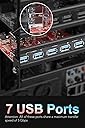
🚀 Unlock 7x USB 3.0 ports and turbocharge your desktop connectivity!
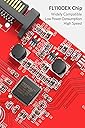
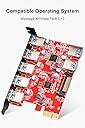
The Inateck PCIe to USB 3.0 Expansion Card (KT5002) transforms your desktop with 7 SuperSpeed USB 3.0 ports, delivering up to 5Gbps transfer rates. Designed for easy installation, it supports hot-plugging and low power consumption, powered via a 15-pin SATA connector for reliable device operation. Compatible across Windows XP to 10 and Mac OS 10.8.2+, this card is ideal for professionals needing fast, stable connections for multiple USB devices simultaneously.


| ASIN | B00FPIMICA |
| Best Sellers Rank | #489 in Internal USB Port Cards |
| Brand | Inateck |
| Built-In Media | 1x 15pin to 2x 15pin SATA Y-cable, 1x CD Driver, 1x Mounting Screw, 1x SATA to 4 Pin Molex Power Converter, 1x USB3.0 PCI-E expansion card, 1x User's Manual |
| Compatible Devices | Windows XP, Vista, 7, 8, 10 and Mac 10.8.2 and above |
| Customer Reviews | 4.3 out of 5 stars 2,226 Reviews |
| Global Trade Identification Number | 06957599307598 |
| Hardware Interface | PCI Express x4 |
| Item Type Name | Inateck Superspeed 7 Ports PCI-E to USB 3.0 Expansion Card - 5 USB 3.0 Ports and 2 Rear USB 3.0 Ports Express Card Desktop with 15 Pin SATA Power Connector, Including Two Power Cables (KT5002) |
| Item Weight | 2.08 ounces |
| Manufacturer | Inateck |
| Mfr Part Number | KTU3FR-5O2U |
| Model Number | KTU3FR-5O2U |
| Number of Items | 1 |
| Operating System | Windows XP, Vista and Windows 7/8/10 |
| Style | 7 USB Type-A Ports |
| Style Name | 7 USB Type-A Ports |
| Warranty Description | 1 year warranty |
A**E
Works great and works in Multi-Card setup. Beware of newer drivers though (update)
I managed to get two of these cards installed on my ASUS Z-97 Pro motherboard. Both work well and now I have 10 external USB 3.0 ports and 4 internal USB 3.0 ports. I use the internal ports for things such as USB Bluetooth dongle, Logitech USB receiver (mouse, keyboard), a small hard drive mounted inside my PC case. The external ports work flawlessly and I've had no problems with them. If you have a motherboard similar to the ASUS Z-97 Pro and have a SATA drive plugged into the internal SATA Express port, then note that one of your PCIe slots will not function and you will not be able to use that PCIe slot as the SATA Express drive is taking up the data lane for that PCIe slot. This can be very frustrating if you aren't aware of this situation . To install one card it is straight forward and pretty much self explanatory. To install multiple cards you will need an open PCIe (and functioning) slot for each additional card and a power supply. I suggest a multi-SATA power cable. Before installing the second card, if you haven't already installed the first card do so and install the drivers and make sure it is working, then turn off the computer and slot in the second card and turn on the computer. You do not need to install the drivers again. The original drivers for the first card should recognize and configure the second card as well. You might receive a minor error while the computer is configuring the drivers for the second card. It shouldn't affect the functioning of the card. During the installation of the second card, once I turned on my computer, my computer automatically recognized the card and installed drivers for it automatically (which were the same drivers already installed and hence the error). Once you have the second card working, verify both cards are functioning properly. I don't think the drivers were really designed for multiple cards in mind, but they seem to work under Windows 7 64-bit no problem. As for Windows 10 I don't know. I deducted a star from my review because the drivers haven't been updated since 2014 and are likely out of date, especially for Windows 10. So, that is my experience with multi-card installation and my two cards are identical cards with identical chipsets. Using different cards with differing chipsets might yield differing results. I hope this helps anyone trying to get two or more cards working. ---------------update--------------------------- As of yesterday (1/27/17) after updating the drivers ( to 3.6.9.0 8/2/16), the external ports (all 5 ports on both cards) no longer work. The internal ports (2 on each card) still work fine, but no external ports work at all. Trying to diagnose the issue. I will update when and if I find a fix. --------------update ----------------------------- After some tinkering with the cards (installing and uninstalling and restarting the computer a few dozen times) I was able to determine the cause of the problem. It appears that when I updated the drivers to version 3.6.9.0 8/2/16 that the old drivers were left behind and still active. I imagine some sort of conflict was being caused with the old drivers and new drivers trying to control the same cards at the same time. Anyhow, the solution I found was to user Driver Boost 4 to uninstall all the drivers (old and new) (while removing the drivers you will find about 7 per card and they all contain the name 'Frisco' in their description). Once all the drivers were removed I removed both cards from my PCI slots and started my computer absent of the cards. Then registry cleaned my registry to get rid of any lingering registry entries. I then shut down the computer, and installed only one card then turned on the computer. Once the desktop appeared the card was present but no drivers could be found for it. That was a positive sign. So I installed the newest drivers again (3.6.9.0). I removed all the USB cables from the external ports and reconnected them one by one and they came back to life and all my devices worked. For the second card, I then shut down the computer and installed the second card (connecting power and placing in a seperate PCI slot). Then I restarted the computer. Once the desktop came up the computer automatically installed the drivers for the second card as it recognized that it uses the identical drivers to the first card. I connected my USB cables to the second card and everything worked as expected. So, the cards are very good, however, for some reason the new drivers did not uninstall the old drivers properly and that is what caused my problems.
T**T
A great card at a great price at $21.99 lightning deal
I edit a lot of videos so having file transfer speed over 100MB/sec is important to me. I don't know why I didn't do this sooner but I finally woke up and look to purchase a USB 3.0 card to connect my many hard drives. This Inateck card appeared on Amazon Lightning Deal at a good price and with good reviews. I hesitated a little since I have never heard of this brand. But eventually I clicked "submit" and order it. I am happy to say that this is a great USB 3.0 card. I added 7 USB 3.0 ports to my computer without much effort. It took a mere 10 minutes. I had to use the included SATA power connector to power the Inateck card. Otherwise, devices were not detected or even spin up. I downloaded the driver off the website, and didn't even bother with opening the CD that came with the package. <soap box> I really hate it that as companies get bigger that they feel the need to protect their bottom line, and do stupid things like prevent someone from inserting a URL in their review (that is not an Amazon product link). God forbid someone links to a competitor website. I was trying to link you, the shoppers, to the device driver file on the manufacturer's website but the A-hole company that also starts with an A (and whose CEO is a Bozo for allowing this bad policy) decided to remove the URL after I post it. So now I am resorting to cryptic languages and more wasted time to edit it back in. </soap box> The drivers are here: inateck dot com \ pci-e-to-usb-3-0-cards \ usb-3-0-pci-express-card-works-with-extra-power-cable \ inateck-ktu3fr-5o2u-usb-3-0-pci-express-card.html I plugged in all my USB 3.0 drives and they all worked fine. One issue I did encounter was on Windows 7. Two of my drives would collide and would only work if the other is not plugged in. If both are plugged in, one one is visible. This was caused by a duplicate drive ID in the boot block (not the same as drive letter). I googled around and found that I had to go into Windows Disk Administrator and look for the "offline" drive and right click on the "offline" area and select "online". That caused Windows to create a new disk ID for the offline drive and all is good. This problem never appear to me in the past because I had only two USB 3.0 ports, so I never had these two drives connected at the same time. It is really a Windows issue, not Inateck. Overall a great USB 3.0 card and highly recommended. One more thing. Before trying this card, I tried a generic 7 port USB 3.0 hub by "7 Ports" that I bought at an auction site. That hub has an interesting feature in that each USB port can be turned off with a switch. That hub worked fine, but when I tried plugging in the power adapter to the hub so that I could get extra power to run external 2.5" drives, the computer wouldn't even boot. Apparently the power adapter is wired such that it is shorting out the computer, causing the computer to not boot. So just a word of caution if you are considering going the hub route. The compatibility testing is still not quite there yet in the hub world. Go with this instead. You will be much happier. Update: 9 months later, it is still working fine. I have 5 USB drives connected permanently to these ports and they all work fine, giving me great speed without having to open up the computer and connect to the SATA port directly. I get 90MB/S writes with the WD drives I use, so that is plenty fast for my video editing needs. Windows hibernation works great, all drives are found after coming back from hibernation. My WD drives spin down on their own after hibernation.
L**T
A great product and a very responsive customer support.
I purchased the “5-port & 2 rear USB3.0 Express Card” to replace an “ORICO PVU3-5O2I Booster USB 3.0 7 Port PCI Express Card”, which failed to install. I did work with customer support of the company which sold the Orico Card for over five days without avail. I had no choice but to return the Orico Card to Amazon. Well, I went back to the drawing board and looked for a replacement. My eye caught the “Inateck Superspeed 7 Ports PCI-E to USB 3.0 Expansion Card”, because of the in general excellent reviews about the German craftsmanship and ease of installation. However, Christopher Lambert’s review was the only reason I hesitated for a short while; well my computer has a not so young Asus motherboard. When I pressed the order button on the Amazon website I said to myself “I hope you are wrong Christopher”. Surprise, surprise, I received an email from Inateck before their product arrived. This email was an advice not the use the CD for the driver installation, but to download a newer one from their website. I followed their instructions and attempted to finish the installation with a restart of the computer as per manual. Holy moly, Christopher was right; why didn’t I listen to him? No matter how often I hit Bill Gates’s mistake, the black screen with a white cursor came back. I was not able to get into the setup screen by touching the delete button; not even after removing the card again. La Forza del Destion corrected the problem. I had to leave our home for closed to two days. Before departing I disconnected the computer and took him to the garage to blow out the dust, which had collected during the last two years. While away from home I communicated with the Inateck customer service folks via our MeMO and they stuck with me all the way. Upon return I hooked the cleaned computer back up and pressed the start button and voi la Sarastro III came back to live. I am sure that the dust removal was not the reason for the computer’s revival, but the over thirty-six hours without power did reset the bios. I am confident that removing the clock / bios battery (suggested by Inateck Customer Service) for a while and reinstalling it would have yielded the same result. The decision whether or not to attempt the Inateck Card again was not a big one. I gave the Orico Card more than five chances; why not give the Inateck Card a second chance? The computer started again with the card installed without a problem. Next I checked the Device Manager and found the card however, with a missing driver. I had the Device Manger install the driver after guiding him the downloaded driver folder. The computer went wild at this point and did five or six loops with “Installing” and “Ready to use” displays. Watching the advices dance around on the monitor screen was very uplifting. It gave me heart to plug the internal USB3.0 cable from the “InfoZone 3.5-Inch Front Bay USB 3.0 Expansion Port” into one of the two internal USB3.0 ports of the Inateck Card. The computer did two or three more loops after I turned him on and that without my help. I found that all ports at the back and in front of the computer including the SD lot had fire, what made me very happy. The Inateck Card and the front panel ports are very, very fast and I am equally with satisfied both products. I can recommend both products wholeheartedly without reservations.
E**E
Instructions were useless, installation was difficult, but card works
The card works well and I recommend it, but installation was a unnecessarily painful, as several here have mentioned. I installed the card on a Dell Optiplex 790 running Windows 10. The first thing to do when you receive the card is take out the instructions and throw them away. They're almost completely wrong. You must connect the card to a power supply on your computer or the driver won't install (the instructions don't say this). That was a problem for me because the single SATA power supply plug in my computer was a long distance from the card slot. I had to buy an extension cable and wait for that to come in. The "Y" cable that comes with the card cautions you to ensure that the wire colors match when you plug it in to your computer's power source. That was impossible for me. The Y cable doesn't have an orange wire, and the supplied cable has a yellow wire. The "matching" wire in my computer was white. I figured that, since the plugs were compatible, it wouldn't matter, so I plugged it in and it worked. After a bit of research, I discovered that most devices don't need the 3.3V connection, which correspond to the orange wire, so they omit it. I never did figure out why Dell uses a white wire instead of a yellow one. That wire is supposed to carry 12V. The red wire carries 5V, which is what I think the card must require, and the red and black wires did match. Another customer here at Amazon said that Windows 10 would not install the driver automatically, and that he had to download version 3.8 of the driver and install it manually. I downloaded that version just in case I needed it, but Windows 10 did install the driver automatically for me! Device Manager in Windows lists the driver as "Fresco Logic USB 3.0 eXtensible Host Controller - 1.0 (Microsoft)". Perhaps there has been an update of some kind since that customer installed his or hers. So, I recommend the card, it works well, but installation was a hassle. I hope my experience helps others.
K**T
Huge help for gaming setup
So, I have a lot of USB peripherals. I have my mouse, my keyboard, my keyboard's auxiliary USB input, headset data cable, headset charging cable, microphone, webcam, HOTAS, printer, controller, HTC Vive, and probably a couple others I'm forgetting. I already got an extender to turn 1 port into 4, but I still ran out. This thing takes an unused PCIe slot and turns it into FIVE USB 3.0 ports! I plugged it into a PCIe 1x slot, gave it SATA power, downloaded the drivers from the website, restarted my computer, and those ports worked flawlessly. I don't use them, but the 2 internal ports would be great for wi-fi adapters or maybe a wireless mouse receiver. Overall a FANTASTIC addition to my gaming PC. The only downsides are the requirement for SATA power, which was a pain to wire through my already crowded PC, and the fact that the drivers came on a CD... and I don't have a CD player. Very easy to find via a Google search though. Neither of these were serious or permanent hurdles though, and the thing was cheap, so I'll gladly recommend this thing and grant it 5 stars.
E**N
Never worked, somehow swaps C: and D: drive letters
I went through a solid 7-8 hours of troubleshooting this thing last night; it is currently at UPS on its way back to amazon. First, my setup: fully-activated and updated Windows 10 pro (1803), Ryzen 5 1600x CPU @ 3.9GHz, 16GB DDR4-3000MHz RAM, GTX 1060 6GB, Intel 545s 256GB M.2 SSD, and a Seagate 2TB HDD. This computers been working for over a year with no real problems, especially nothing like what happened with this card. 1. I installed the card without installing the driver first. I made sure the card was properly secured in the PCIe slot and screwed in, with the external SATA power plugged in as well. 2. Windows attempted to boot, started the "automatic repair" process, and then gave an error saying the automatic repair had failed, and gave the file path for the error log on my "C:" drive. 3. I shut down my computer, took out the USB expansion card, and started the computer back up. It did the exact same automatic repair process and failure. 4. Using the CMD terminal available in the additional/advanced settings of the error menu, I ran "chkdsk /r C:" which should have scanned my 250GB SSD because that'd always been my C: drive, and I waited 3.5 hours for it to tell me my C: drive was perfectly fine. 5.I made a windows 10 installation drive using a flash drive and the tool provided by Microsoft, and attempted to use that to fix or reinstall windows. Both failed, with one stating something like "cannot find file partition" or something like that. 6. I began looking for that error log that was supposed to be on my C: drive. If you're reading this as a guide, just type the name of the drive you want to go to and hit enter (i.e. "C:" without quotes, then enter). Then use "cd (folder)" to "change directory" (aka folder) to the folder you want to go to (i.e. "cd C:\Program Files".) and simply type "dir" then enter to show all the files & folders in that directory. That should allow you to slowly navigate the filesystem using the command line interface. You can open simple files (I only tried .txt) by just finding where it is and typing, for example "C:\Windows\System32\ErrorLogs\errorlog.txt" and that'll open the text file. 7. I realized these files were from my 2TB HDD that should be my D: drive. When running "wmic logicaldisk get name" in the CMD prompt, it showed my C: drive (HDD), a D: drive that had 1 file named "recovery.txt" that was blank, and an X: drive which was windows or whatever pre-windows thing I was in. 8. I shut down my computer, opened it up, unplugged and re-plugged my SSD, HDD, RAM, and GPU (because my SSD was under it). The computer gave the same error on startup. 9. I unplugged my HDD, which SHOULD have been my D: drive but was showing up as my C: drive. Started my computer again, and since there were no drives other than the drive that DID have windows on it, it managed to boot, and give me a bunch of errors about not being able to reach my D: drive. 10. I shut down, plugged in my D: drive, still had the USB expansion card completely removed, and restarted my computer. It booted normally (although all my shortcuts were rearranged because of all the resetting my CMOS & BIOS.). 11. I attempted to install the drivers for the USB expansion card. They would not install without detecting the card was inserted, which is hilarious because the instructions (which I eventually gave-in and read) even say to install the driver before installing the actual card. 12. I plugged the USB expansion card back in, which both my SSD and HDD plugged in. The automatic repair process began and failed again. 13. I unplugged my HDD, so that the SSD and the USB expansion card were the only 2 relevant things plugged in. It managed to boot to windows, and I successfully installed the drivers. 14. I restarted the computer to apply to drivers, and even without my HDD plugged in the automatic repair process began and failed again. 15. I unplugged the USB expansion card, started the computer with out my SSD inserted, and it started successfully. 16. I then plugged my HDD back in and fixed all my icons, put my BIOS settings back to how I had them, and returned this nightmare of a product. I read through a handful of 1-star reviews, and it seems that the people claiming to have been forced to re-purchase windows or hard drives may have experienced the same problem but diagnosed it differently. That said, I don't doubt something this screwed up can cause some completely unrelated but equally ridiculous problems.
O**M
WIN10 Users READ THIS
This card works with WIN 10. I had originally rated this product as 1-star because it initially did not work with my WIN10 machine. However after receiving phenomenal support form the vendor, I got it to work. The box comes with a CD which directs you to the Inateck website. Once there you have to search for your product to download the driver. At the time of this posting, 2 drivers were listed, but neither specified the applicable OS thus I did not use either driver. Rationale for my decision was that it was stated that if you had WIN10, you did not need to install any driver -- this is not true! (read below). If not loading the driver, the Device Manager only showed a generic USB 3.0 HUB. Here was THE FIX recommended by the vendor: 1. Connect the card to the power supply using the included cables (and applicable connectors inside your PC). NOTE: My previous card (although it had a power port) did not require the power supply connection. This card however does require use of the power supply port. Once connected, a green LED illuminates on the card. 2. Download/install driver ver-3.8.33709.0" from Inateck official website. NOTE: After installing the driver, my Device Manager indicated a specific (vs generic) 3.0 USB Hub. YES, I RECOMMEND THIS CARD. Good luck with your application.
W**N
Cannot turn off PC with this card installed
First impressions indicate that this card is well built. However, upon installing it in my Dell Optiplex 790 mini-tower, I had nothing but problems. First, the two power cables provided only have 4 wires instead of 5. This means that the 3.3V power is not tapped. This may be fine for this card, and for most other devices, but using this cable may prevent you from adding a device in the future that uses the 3.3V signal. Second, the power cable is not long enough. It may be fine for a mini-desktop PC, but for me, it was about 8 inches too short. So I had to buy an extension for the power cable. (I actually bough a multi-tap extension so I wouldn't have to use the provided power cables.) Installing the drivers went fine - the driver provided on the CD is the same version as the latest driver from the web site. After the driver was installed, the card was recognized. I then attempted to power the PC down. It wouldn't - within one second of powering down, it powered up again. The fans didn't even have time to spin down. I tried to power it down three times and it continued to power up by itself. I then unplugged the power cord, removed the card and now the PC powers down normally. I then tried installing the card in a PCIe x16 slot with the same results. Technical support: I then contacted Inateck technical support. After two days, I received an acknowledgement for my email stating "our tech-support is on a business trip, would you please kindly wait for a moment". Bells went off - they only have one person for technical support? I decided to wait anyway. After two weeks without receiving a response, I decided to return the card. Unfortunately, with the wait for the extended power cord and the wait for technical support, I have now passed the 30 day window for Amazon returns. Lesson learned - next time I have a problem, return the item and don't try to get the problem fixed. So I'm stuck with this card that doesn't allow my PC to power down. I've since connected a USB drive to the card and it seems to work, except that I can't power down my PC. I've decided to purchase a different card from another manufacturer. UPDATE: Changing from 1 to 3 stars. A few days after my post, I received an email from Inateck apologizing for my problems. A few more days after that, I got an email in response to my original email to Inateck. Although it took quite a while for Inateck to get back to me, they sent me a full refund. In the meantime, I purchased an Anker USB 3.0 PCIe card, and it seems to be working without any problems.
N**Y
Funciona perfectamente.
Hace su función, como debe ser, pero lo bueno es que tiene 7 puertos usb 3.0 y su instalación es fácil solo puedes tener problemas si nunca has puesto ninguno y quizás también está el problema de que el manual está en alemán e inglés solo. Por lo demás perfecto. Compatible con Win10.
D**S
Ottimo!
Scheda USB a basso costo, installata molto facilmente sul suo slot PCI x1 e ha 5 USB davanti e 2 all'interno tutte 3.0. Per adesso non ha dato problemi, e non credo ne darà in futuro. P.S. va alimentata con connettore di alimentazione Sata. Consigliata!!
B**6
Carte pas chère, fiable et facile à installer
Après un avatar avec une autre carte, plus courte de 1 mm (!) que la largeur standard d'une carte PCI-express, je me suis rabattu sur cette carte avec bonheur. Facile à monter - sans oublier de l'alimenter - c'est sans souci que je l'ai mise en route - en téléchargeant directement le pilote sur le site d'Inateck. Reste à tester le support technique dont je n'ai pas eu besoin jusqu'à présent
M**Y
Fantastic card, does the job very well it's just a shame about the power cable adapter...
My Asus Ranpage IV Black Edition motherboard has built in USB 3.0 and I have had no problems with it until I got the Oculus Rift CV1 Virtual Reality headset. Even then initially it worked, but showed a warning when checking the CV1 hardware status, until the latest version of Oculus Home and the runtime (1.3.2) and suddenly the CV1 wouldn't work in my USB 3.0 ports so I had to move to USB 2.0 which gave me a warning about possible tracking issues. At the recommendation of an employee of Oculus I looked into Inatecks PCI-E USB 3.0 cards. There are a few variants but I figured if I was going to disable my on board I would need the maximum amount so ordered the one with 7 ports (2 internal) So that the internal ones are being used I put a 128GB USB 3.0 memory stick in each and my CV1 headset and sensor are connected to the external ports. Now my CV1 hardware status shows all green lights and everything works perfect and my USB 3.0 external HDD works faster too so added bonus. The card looks good and it's good having all the ports are together but my PC case has a window and the cable they provide to connect power cables to (the card needs extra power to support the USB 3.0 ports) doesn't look very nice when the rest of my cables are black very tidy or hardly noticeable. I can highly recommend these cards for anyone wanting a good USB 3.0 card for external storage or a VR headset.
G**G
Remember this divides your systems ability by 5
Appears to be a decent build quality and at this early stage has performed well, and as expected
Trustpilot
2 weeks ago
1 month ago