Desertcart purchases this item on your behalf and handles shipping, customs, and support to South Africa.
🚀 Upgrade your workflow with speed and style!
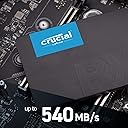
The Crucial BX500 240GB 3D NAND SATA 2.5-Inch Internal SSD delivers a robust 540 MB/s read speed and reliable SATA 6.0 Gb/s connectivity, making it an ideal upgrade for desktops and gaming consoles like the PS4. With a compact form factor and backed by a 3-year warranty, it combines performance and durability to keep your system running smoothly.


| ASIN | B07G3KRZBX |
| Best Sellers Rank | #23,276 in Computers & Accessories ( See Top 100 in Computers & Accessories ) #133 in Internal Solid State Drives |
| Brand | Crucial |
| Brand Name | Crucial |
| Cache Memory Installed Size | 240 |
| Color | black |
| Compatible Devices | Desktop |
| Compatible Video Game Console Models | Sony PlayStation 4 |
| Connectivity Technology | SATA |
| Country of Origin | Taiwan |
| Customer Reviews | 4.4 out of 5 stars 18,092 Reviews |
| Data Transfer Rate | 6 Megabytes Per Second |
| Digital Storage Capacity | 2.4E+2 GB |
| Form Factor | 2.5-inch |
| Global Trade Identification Number | 00649528787675 |
| Hard Disk Form Factor | 2.5 Inches |
| Hard Disk Interface | Serial ATA |
| Hard Disk Rotational Speed | 2400 RPM |
| Hard Disk Type | Solid State Drive |
| Hard-Drive Size | 240 GB |
| Hardware Connectivity | SATA 6.0 Gb/s |
| Installation Type | Internal Hard Drive |
| Item Weight | 2.12 Ounces |
| Manufacturer | micron |
| Manufacturer Part Number | CT240BX500SSD1Z |
| Model Name | BX500 |
| Model Number | CT240BX500SSD1Z |
| Network Connectivity Technology | SATA |
| Number of Items | 1 |
| Product Features | Multitasking |
| Read Speed | 540 Megabytes Per Second |
| Special Feature | Multitasking |
| Specific Uses For Product | Personal |
| UPC | 649528787675 |
| Unit Count | 1 Count |
| Warranty Description | 3 YEAR |
V**K
A Worthwhile Upgrade That Made My Old Laptop Feel New
I was looking to upgrade the old SATA hard disk in my 10+ year-old laptop to an SSD, as the traditional hard drive had become a major bottleneck. The laptop had become painfully slow, with long boot-up times and increased waiting for almost every task. I purchased the Crucial BX500 SATA SSD and upgraded the laptop by cloning the existing hard drive. The improvement was remarkable—performance felt almost 10 times faster compared with the old HDD. The overall responsiveness increased significantly, and it genuinely feels like I have a new laptop. The boot-up time, which previously took minutes, has now been reduced to just a few seconds. Applications also open much faster, and everyday tasks are noticeably smoother. For anyone using an older laptop with a traditional SATA hard drive, I highly recommend the Crucial BX500 SSD. It is a simple and worthwhile upgrade that can significantly extend the useful life of an old laptop. Highly recommended—excellent performance upgrade for an older laptop!
S**M
Amazing Speed!
The package was slightly damaged but SSD inside was okay I believe. Regarding installation it wasn’t that smooth since cloning software provided by crucial didn’t work and i ended up wasting couple of hours. Had to do a lot of search online about reason of failure and then downloaded alternate software which fortunately worked fine. Coming to physical replacement, it wasn’t that difficult as opposed to what I expected. The SSD fit into HDD slot very nicely and i think it hardly took me 20 minutes to do that. Now the best part is result of this. All the effort was worth it!! The booting time is just seconds and too single digits. The general navigation and surfing has also improved a great deal. Feels like i bought a new laptop with some advanced configuration. Go for it guys but be careful with cloning part, prefer a clean install if not much is installed on your system.
K**R
Good SSD, Happy with the Purchase
⭐⭐⭐⭐⭐ Good ⭐⭐⭐⭐⭐ Working Perfectly So Far Received the SSD in good condition. I’ve been using it for around 12 days, and it’s working really well with no issues so far. My laptop’s SATA 2 port supports only 3Gb/s, so I’m getting speeds of around 280 MB/s. With a SATA 3 (6Gb/s) port, it could reach up to around 500 MB/s. Overall, I’m satisfied with the purchase!
T**R
Excellent Performance Upgrade!
I upgraded my laptop with a 240GB SSD, and the performance improvement is amazing. Earlier, my system used to take around 1 minute 10 seconds to boot. Now, it boots in just 20–25 seconds. The overall system feels much faster—apps open quickly, and there is no lag compared to the old HDD. This SSD upgrade is totally worth it and gives new life to an old laptop. Highly recommended! 👍
G**R
Usable and super
It really fast your system if Your day to day work is nominal
R**R
1+ Year Use -Experience
I bought this for my old laptop, which originally had a hard disk. I moved the old HDD to secondary storage and used this SSD as the primary storage for Windows. After using it, I felt the performance was better than the old hard disk. Since it is a 2.5-inch SSD, it fitted properly in my laptop and the compatibility was also good. This is the BX500 240GB version, with up to 540 MB/s read and 500 MB/s write as mentioned. I never checked the actual speed, but in normal use the performance felt good to me. The body is plastic, not metal, so it is lightweight. One thing to note is that screws are not provided with the SSD, so you may need to arrange them separately. I have been using it for more than a year now and haven't faced any issue so far. The product also looked genuine and everything was proper. Overall, it has been a good SSD for me and I am satisfied with it.
M**A
Easily and without a doubt the best and the most economical ssd available in the market
It can put new life into any laptop. People use it to restore old laptops, their writing speeds are the best, it is definitely vwry lightweight. It can retrofit into any old laptop with CD deive using caddy. Crucial's support is great as well. This ssd is well priced and can easily becomes the favorite choice for anyone.
T**A
Great
Great investment if you want a better speed on your old laptop. You can install it yourself. Without the need of any assistance.
C**O
Comes with Acronis true
Convenient to buy online and get fast delivery to my doorsteps. This ssd comes with Acronis True Image for easy cloning of existing hard disk.
A**R
Instalación ssd.
El ssd está muy bien, para mi junto a samsung las mejores opciones sin lugar a duda. La memoria usada, 3D NAND, hace que su vida útil sea mucho mayor que la de otros ssd que emplean en su fabricación memorias más baratas. En cuanto al rendimiento, es una pasada, no hay mucho más que decir. Además tiene un precio de derribo actualmente. Describo ahora que pasos sigo cada que vez instalo un ssd. Depende de si tienes sólo 1 ssd ó si tienes ssd+ hd, el proceso puede variar (ej. los temporales los pues quitar del ssd si tienes un hd, de otro modo no). : - Activas en la bios modo AHCI (sata, no raid). Poner cd de windows con el orden de arranque desde la lectora y empezar instalación. Se creará un espacio de 100 mg y el resto será donde hagamos la instalación. No hacer particiones al ssd, sufre demasiado. - Una vez instalado, comprobamos alineación y Trim correctos. Para alineación podéis usar Disk Alignment Test, es gratis y no pesa nada. Para Trim, ejecutar sobre windows cmd, escribir fsutil behavior query disabledeletenotify , dará valor 0. Es correcto y seguimos. - Desactivar pagefile.sys, "Panel de control, sistema, sistema, , Configuración avanzada del sistema, opciones avanzadas, configuración, opciones avanzadas, cambiar". Ahí o bien la quitas y la dejas a 0, o la quitas y la pones en el HD, depende de si tienes mucha RAM. - Desactivar desfragmentar, sobre windows, escribiendo Desfragmentador, se abre y quitamos programación. Además lo quitamos en servicios, escribimos en windows servicios, se abre y paramos y deshabilitamos “Desfragmentador de disco". - Desactivar indización, abrimos mi pc, botón derecho sobre c, propiedades, y desmarcamos la segunda opción "permitir que los archivos de esta unidad tengan...." os dirá que necesitas ser administrador, dáis si, os dirá que no todos se pueden, le dáis a omitir. Este paso es el que más tiempo lleva, por eso lo suelo hacer al inicio. Además hacemos lo mismo que antes en "servicios", la opción se llama “Windows Search”, la paramos y deshabilitamos. - Desactivamos hibernación, sobre windows escribimos cmd, y pegamos "powercfg -h off ", ya está hecho. - Desactivamos Prefetch Y Superfetch, sobre windows escribimos regedit, luego seguimos la ruta HKEY_LOCAL_MACHINE\ SYSTEM\ CurrentControlSet\ Control\ Session Manager\ Memory Management\ PrefetchParameters y en las claves EnableSuperfetch y EnablePrefetcher poner un valor 0. Además desactivamos Superfetch en servicios, como en los pasos anteriores. Se llama Superfetch. - Desactivamos puntos de restauración, "Panel de control, sistema, sistema, Configuración avanzada del sistema, protección del sistema, abajo disco c, configurar", y los eliminamos y dejamos a cero. - Desactivar programación windows defender, sobre windows escribimos defender, y desactivamos la programación (no el programa). - Cambiar ubicación carpeta temporales, (con ssd + hd), de otro modo no puedes hacerlo. "Panel de control, sistema, sistema, Configuración avanzada del sistema, opciones avanzadas, variables del entorno, en la casilla de arriba (Usuario) se modifica TEMP y TMP y se le asigna el directorio que prefiráis en el HDD, por ejemplo, D:\TEMPORALES, y hacéis lo mismo con TEMP y TMP de la casilla de abajo (Sistema). - Todos los programas de descarga a d, no en el ssd,, (con ssd+ hd). Ej: torrent, firefox, etc etc. - Comprobamos velocidades del ssd, deben ser parecidas a las que se describan, cuidado que si abusáis de programas tipo crystalmark, una instalación de windows pueden ser unos 60 gb (con todos los programas habituales), pasar este otro tipo de programas varias veces son 2 teras. Insisto no abuséis si ya estáis seguros de que la velocidad es la correcta. A 250 mg/sg de media entre los archivos pequeños y los grandes, echad cuentas cuanto escribes en 1 minuto. - Si el ssd tiene software propio, tipo magician en el caso de samsung, usadlo, y cread el reaprovisioamiento, esto os quita espacio en el ssd, pero alargrá mucho su vida. - No os fiéis si crystalinfo dice que tenéis AHCI y NCQ activados, verificad AHCI en la BIOS, si lo está, entonces tenéis los 2, lo digo porque yo me he llevado sorpresas. He intentado ser lo más claro posible, que cada cual use este guión bajo su responsabilidad, a mi me va bien con él, y sólo he pretendido ayudar. Un saludo.
J**A
Boa experiência, cumpre o que promete
Ideal para quem está usando pela primeira vez um SSD e perceber a diferença entre o HD, mesmo não sendo um NVME, a experiência já é gratificante.
A**M
Big brand, low price, reliable SSD
Bought this to fit into an early 2011 Macbook Pro on last legs which was using a traditional 5400rpm 500gb HDD. Fitting was super easy, it uses the traditional and standard sata connection and as it's an SSD - no external power supply is needed either. It was simply plug and play. Formatted the drive, and was up and running in no time. The speed of this isn't groundbreaking and yes, NWMe drivers are quicker, but this is a great boot drive and really good value for money. The Macbook Pro 2011 has gone from a 1m 49 boot time to under 28 seconds and system speed has drastically increased in every area too. Cannot recommend this enough for a cheap, reliable and well known SSD brand. Tip: If you're still using a traditional HDD for Windows or Mac, then upgrading to an SSD is a must.
B**M
Preiswert und schnell eingebaut!
Rezension zu: „Crucial“ 240GB SSD BX500 CT240 Vorab folgende Hinweise: 1. Für Schäden die durch nachgenannte Arbeiten entstehen können hafte ich nicht! 2. Wer mit BIOS „nichts am Hut“ hat sollte eine Aufrüstung durch einen Fachmann ausführen lassen. 3. Wer es sich dennoch traut, dem rate ich auf jeden Fall von den bisherigen BIOS-Einstellungen Fotos zu machen, damit im Problemfall die bisherigen Einstellungen wieder hergestellt werde können. Nun zur „Clone-Aktion“ und warum: Als Zweit-PC habe ich ein Samsung Notebook „Series3 355V4C“. Das habe ich schon ein paar Jahre und dementsprechend langsam verlief der Bootvorgang und die Arbeit damit insgesamt. Nun stand ich vor der Frage „Elektroschrott und Neukauf oder Aufrüstung“. Ein Händler in der Nähe hatte folgendes Angebot: 240GB SSD mit Clone der bisherigen Daten für € 99,00 als Komplettangebot. Speichererweiterung war nicht notwendig, da schon ausgereizt! Also habe ich zugeschlagen und nach zwei Stunden konnte ich mein NB wieder abholen und ... viel, viel schneller. Das hat mir aber keine Ruhe gelassen und ich wollte wissen was da verbaut wurde. Es handelt sich um eine „Crucial BX500 CT240BX500SSD (3D NAND, SATA, 2,5-Zoll)“ Amazon-Preis: € 34,24. Bei Amazon (dem Händler meines Vertrauens!) habe ich dann so ein Teil bestellt, da auch das Notebook meiner Frau ähnlich lahmt. Zusätzlich noch: „POSUGEAR Festplattengehäuse 2,5 Zoll“ für € 8,99 (auch Amazon-Preis). Als Software habe ich gekauft: Partitionsmaster Prof. 13.0 „EaseUS“ für € 33,27, da mir Paragon zu teuer war (hatte ich früher gerne benutzt). Gesamt also: € 76,50. Heute habe ich nun selbst Hand angelegt und innerhalb einer Stunde war der Clone-Vorgang abgeschlossen. Leider ist das ASUS NB nicht so einfach zu öffnen wie mein Samsung, Hier gibt es eine separate Klappe für Laufwerk und Speicher, beim ASUS muss der gesamt untere Gehäuseteil abgenommen werden. Bei YouTube gibt es eine gute Anleitung dazu. Aber auch hier ist der Einbau einfach! Wichtig vor Beginn „Erdung“ nicht vergessen wegen der statischen Aufladung. Elektronische Bauteile könnten Schaden nehmen. Auch hier wurde das neue SSD-Laufwerk sofort erkannt und Änderungen im Boot-Menü waren nicht erforderlich. Das Ergebnis auch hier: einfach viel schneller beim Booten und Programmstart von Windows 10. Alle zuvor installierten Programme laufen sauber. Von der „Crucial-Page“ habe ich mir noch die entsprechende Software geladen, mit der der Zustand der SSD eingesehen werden kann. Mit Samsung Software hatte ich bei meinem NB einen Versuch gemacht, der aber erfolglos war. Die SSD wurde damit nicht erkannt. Nun noch ein letzter Hinweis: In keine Fall eine SSD defragmentieren. Das soll schädlich sein. Die Software IObit „Smart Defrag“ bietet „trimmen“. Ob das gut oder auch schädlich ist kann ich noch nicht sagen. Jetzt noch viel Spaß bei der Arbeit und Erfolg mit neuem Speed!!
Trustpilot
4 days ago
1 day ago